Use SkillFlaw as an MCP client
SkillFlaw integrates with the Model Context Protocol (MCP) as both an MCP server and an MCP client.
This page describes how to use SkillFlaw as an MCP client with the MCP Tools component and connected MCP servers.
For information about using SkillFlaw as an MCP server, see Use SkillFlaw as an MCP server.
Use the MCP tools component
The MCP Tools component connects to an MCP server so that a SkillFlaw agent can use the server's tools when responding to user queries.
This component has two modes, depending on the type of server you want to access:
- Connect to a non-SkillFlaw MCP server with a JSON configuration file, server start command, or HTTP/SSE URL to access tools provided by external, non-SkillFlaw MCP servers.
- Connect to a SkillFlaw MCP server to use flows from your SkillFlaw projects as MCP tools.
Connect to a non-SkillFlaw MCP server
-
Add an MCP Tools component to your flow.
-
In the MCP Server field, select a previously connected server or click Add MCP Server.
There are multiple ways to add a new server:
- JSON: Paste the MCP server's JSON configuration object into the field, including required and optional parameters that you want to use, and then click Add Server.
- STDIO: Enter the MCP server's Name, Command, and any Arguments and Environment Variables the server uses, and then click Add Server.
For example, to start a Fetch server, the Command is
uvx mcp-server-fetch. - HTTP/SSE: Enter your MCP server's Name, URL, and any Headers and Environment Variables the server uses, and then click Add Server.
The default URL for SkillFlaw MCP servers is
http://localhost:7860/api/v1/mcp/streamable. For more information, see Connect to a SkillFlaw MCP server.
提示uvxis included withuvin the SkillFlaw package.To use
npxserver commands, you must first install an LTS release of Node.js. If SkillFlaw runs in an isolated runtime environment, make sure Node.js is installed in that same environment sonpx-based MCP servers are available at runtime.For an example of an
npxMCP server in SkillFlaw, see Connect an Astra DB MCP server to SkillFlaw. -
To use environment variables in your server command, enter each variable in the Env fields as key-value pairs.
提示SkillFlaw passes environment variables from the
.envfile to MCP, but it doesn't pass global variables declared in your SkillFlaw Settings. To define an MCP server environment variable as a global variable, add it to SkillFlaw's.envfile at startup. For more information, see global variables. -
In the Tool field, select a tool that you want this component to use, or leave the field blank to allow access to all tools provided by the MCP server.
If you select a specific tool, you might need to configure additional tool-specific fields. For information about tool-specific fields, see your MCP server's documentation.
At this point, the MCP Tools component is serving a tool from the connected server, but nothing is using the tool. The next steps explain how to make the tool available to an Agent component so that the agent can use the tool in its responses.
-
In the component's header menu, enable Tool mode so you can use the component with an agent.
-
Connect the MCP Tools component's Toolset port to an Agent component's Tools port.
If not already present in your flow, make sure you also attach Chat Input and Chat Output components to the Agent component.
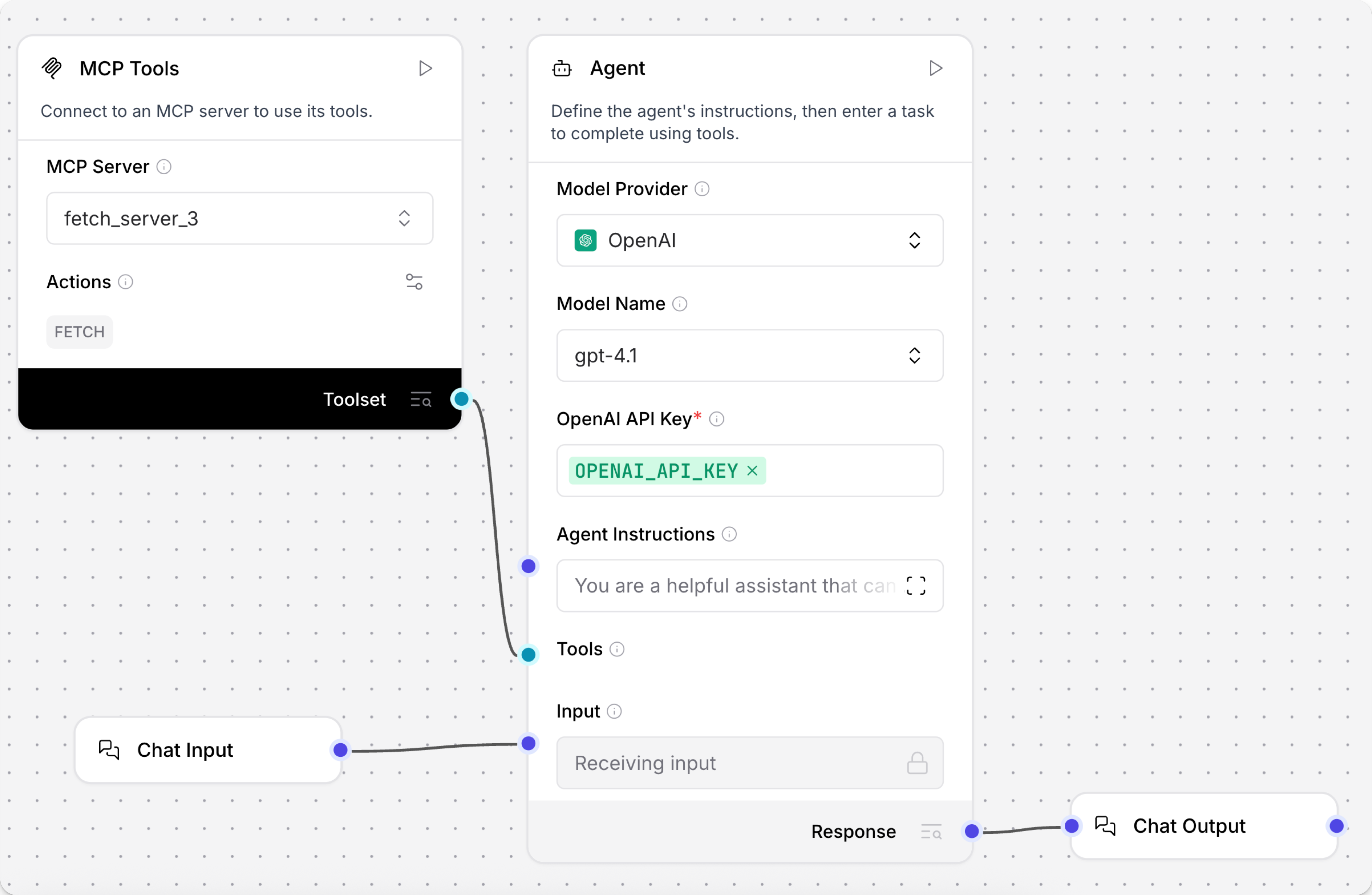
-
Test your flow to make sure the MCP server is connected and the selected tool is used by the agent. Open the Playground, and then enter a prompt that uses the tool you connected through the MCP Tools component.
For example, if you use
mcp-server-fetchwith thefetchtool, you could ask the agent to summarize recent tech news. The agent calls the MCP server functionfetch, and then returns the response. -
If you want the agent to be able to use more tools, repeat these steps to add more tools components with different servers or tools.
Connect a SkillFlaw MCP server
SkillFlaw exposes flows and resources through its authenticated MCP endpoints. For more information about exposing flows as MCP tools, see Use SkillFlaw as an MCP server.
SkillFlaw MCP servers support both the streamable HTTP transport and Server-Sent Events (SSE) as a fallback.
To leverage flows-as-tools, use the MCP Tools component to connect to your SkillFlaw MCP endpoint:
-
Add an MCP Tools component to your flow, click Add MCP Server, and then select HTTP/SSE mode.
-
In the MCP URL field, enter your SkillFlaw server's MCP endpoint.
- Default local server:
http://localhost:7860/api/v1/mcp/streamable
All flows available from the targeted server are treated as tools.
- Default local server:
-
In the component's header menu, enable Tool Mode so you can use the component with an agent.
-
Connect the MCP Tools component's Toolset port to an Agent component's Tools port.
-
If not already present in your flow, make sure you also attach Chat Input and Chat Output components to the Agent component.
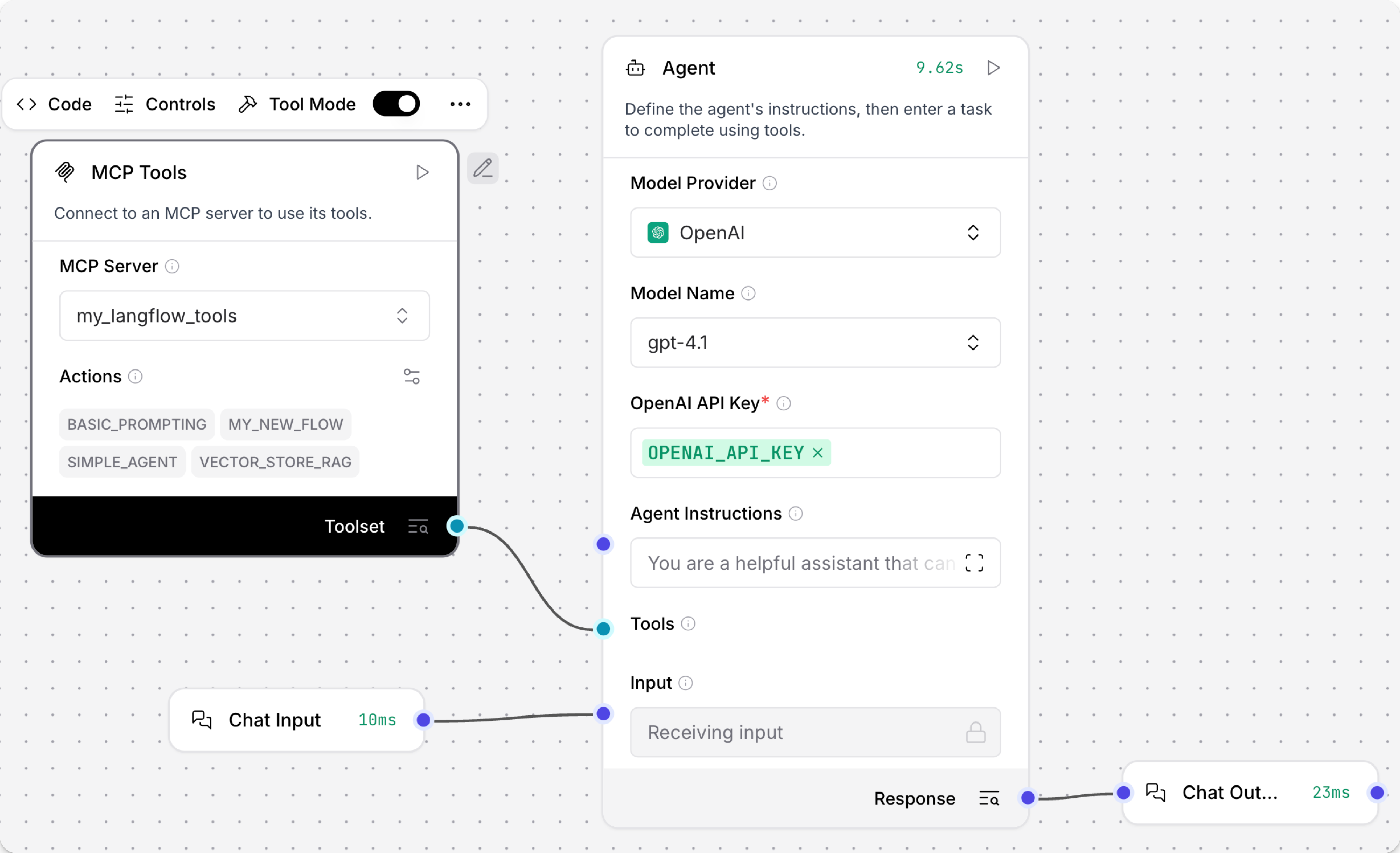
-
Test your flow to make sure the agent uses your flows to respond to queries. Open the Playground, and then enter a prompt that uses a flow that you connected through the MCP Tools component.
-
If you want the agent to be able to use more tools, repeat these steps to add more tools components with different servers or tools.
MCP Tools parameters
| Name | Type | Description |
|---|---|---|
| mcp_server | String | Input parameter. The MCP server to connect to. Select from previously configured servers or add a new one. |
| tool | String | Input parameter. The specific tool to execute from the connected MCP server. Leave blank to allow access to all tools. |
| use_cache | Boolean | Input parameter. Enable caching of MCP server and tools to improve performance. Default: false. |
| verify_ssl | Boolean | Input parameter. Enable SSL certificate verification for HTTPS connections. Default: true. |
| response | DataFrame | Output parameter. DataFrame containing the response from the executed tool. |
Manage connected MCP servers
To manage all MCP server connections for your SkillFlaw client, click MCP servers in the visual editor, or click your profile icon, select Settings, and then click MCP Servers.
To add a new MCP server, click Add MCP Server, and then follow the steps in Use the MCP Tools component to configure the connection and use the server in a flow.
Click More to edit or delete an MCP server connection.