Project manual
This page describes the project workflow exposed to users in SkillFlaw. It covers the project list tabs, detail tabs, version actions, resource binding, and API access available in the product interface.
Entry points
Users enter project functionality through the Project management menu. The list page has three top-level tabs:
- Develop
- Plaza
- Personal / Bound
Interface screenshots
This manual includes real screenshots for the list-page tabs, key create / edit dialogs, and the main detail-page tabs.
Project development tab
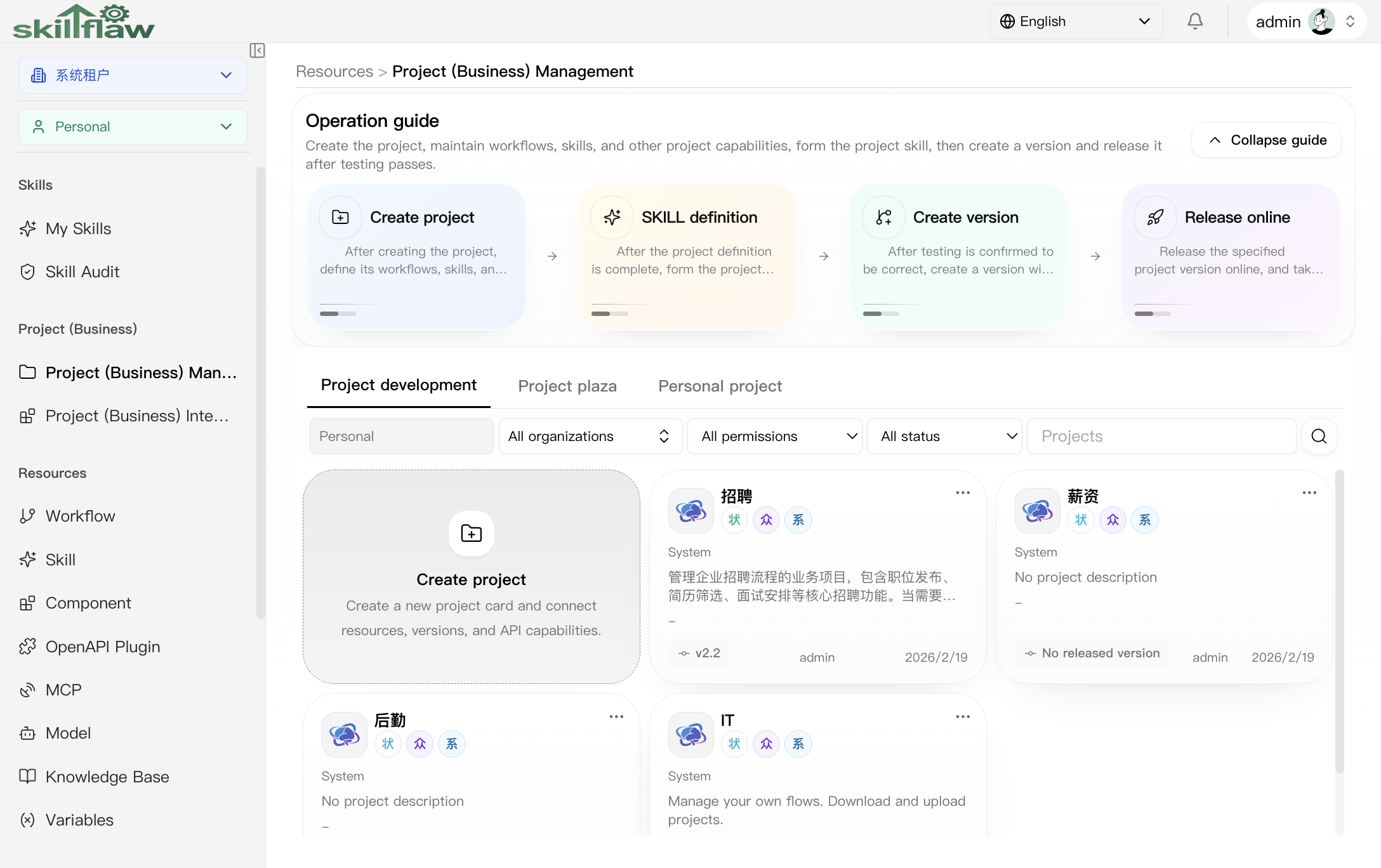
This screen is the main management surface for project creation and maintenance within the selected scope.
It shows:
- the Project development / Project plaza / Personal project tab switch
- the scope indicator, which is Personal in this screenshot
- organization, permission, status, and keyword filters
- the Create project card
- project cards that open the detail workspace
Create project dialog
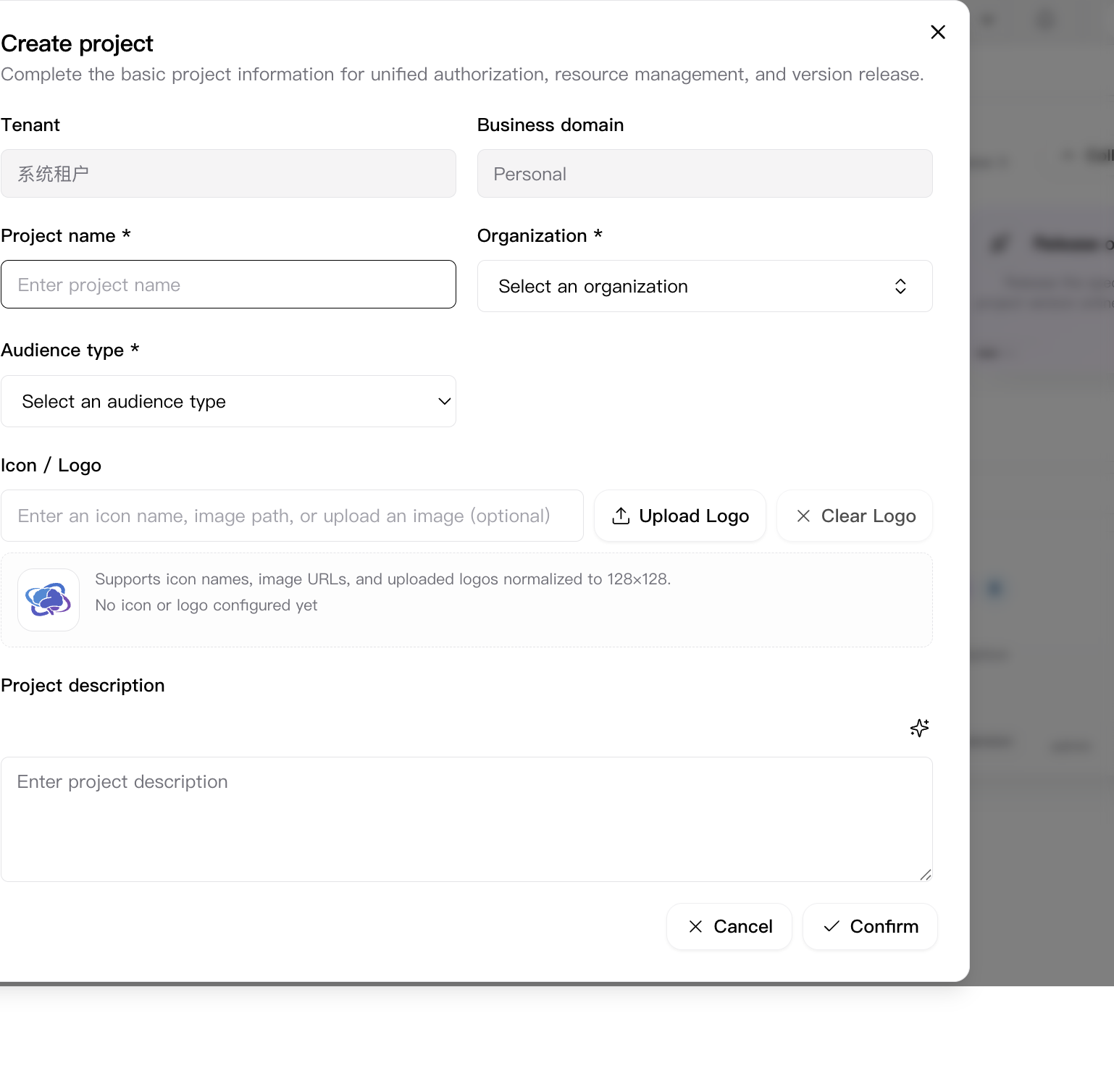
The create dialog includes these visible fields:
- Tenant
- Business domain
- Project name
- Organization
- Audience type
- Icon / Logo
- Project description
Observed behavior:
- tenant and business domain are fixed by the writable scope when creating in personal context
- organization and audience type are required fields
- icon can be typed or uploaded
- description can be assisted by the AI draft description action
Project plaza tab
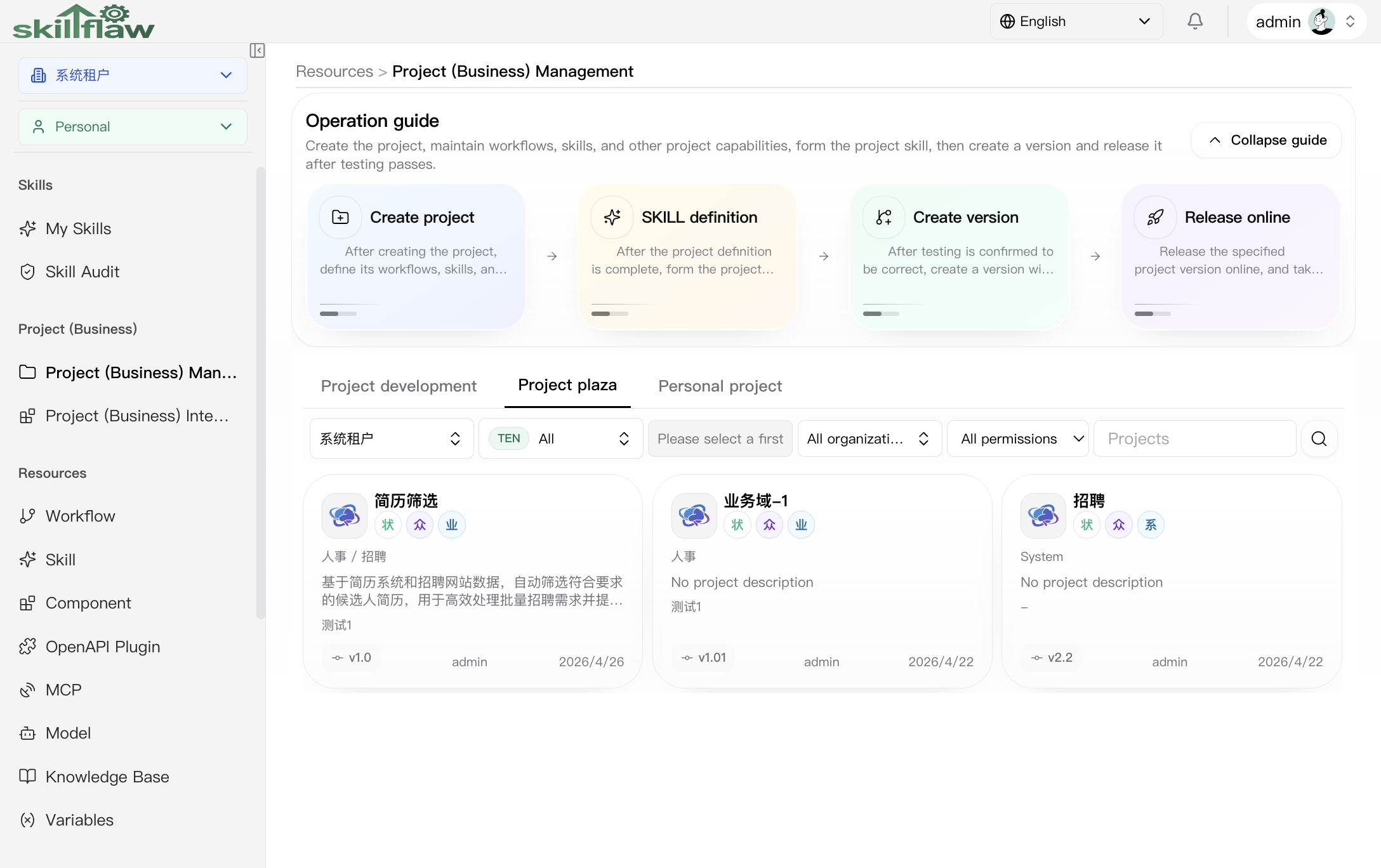
This screen is the read-and-discover surface for projects that are visible in the plaza model.
It shows:
- tenant filter
- scope selector
- organization and permission filters
- keyword search
- published project cards from broader readable scope
Personal project tab
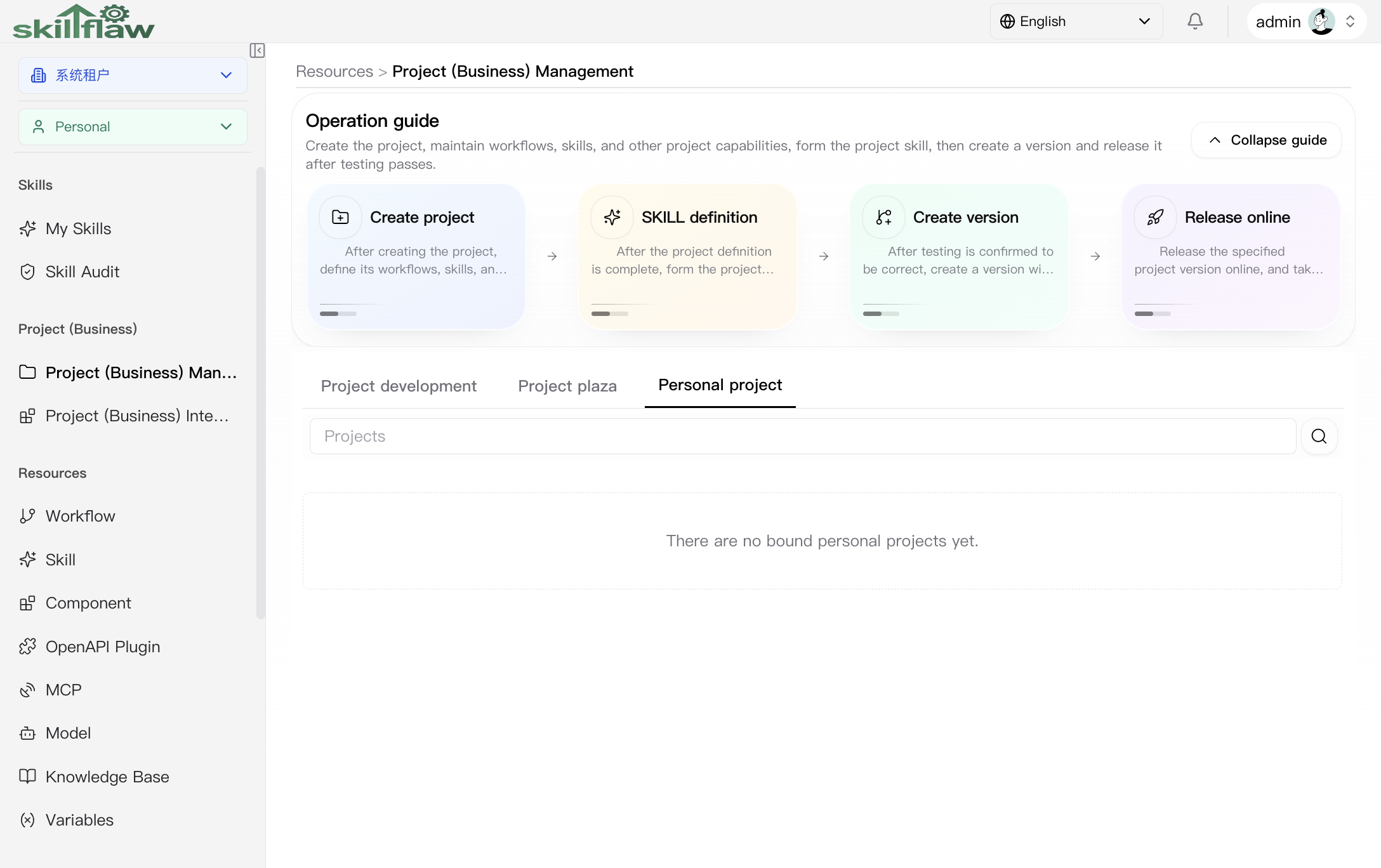
This screen shows the bound personal-project area. In the captured state it is an empty state, which is also real product behavior and should be documented as such.
Project detail tab
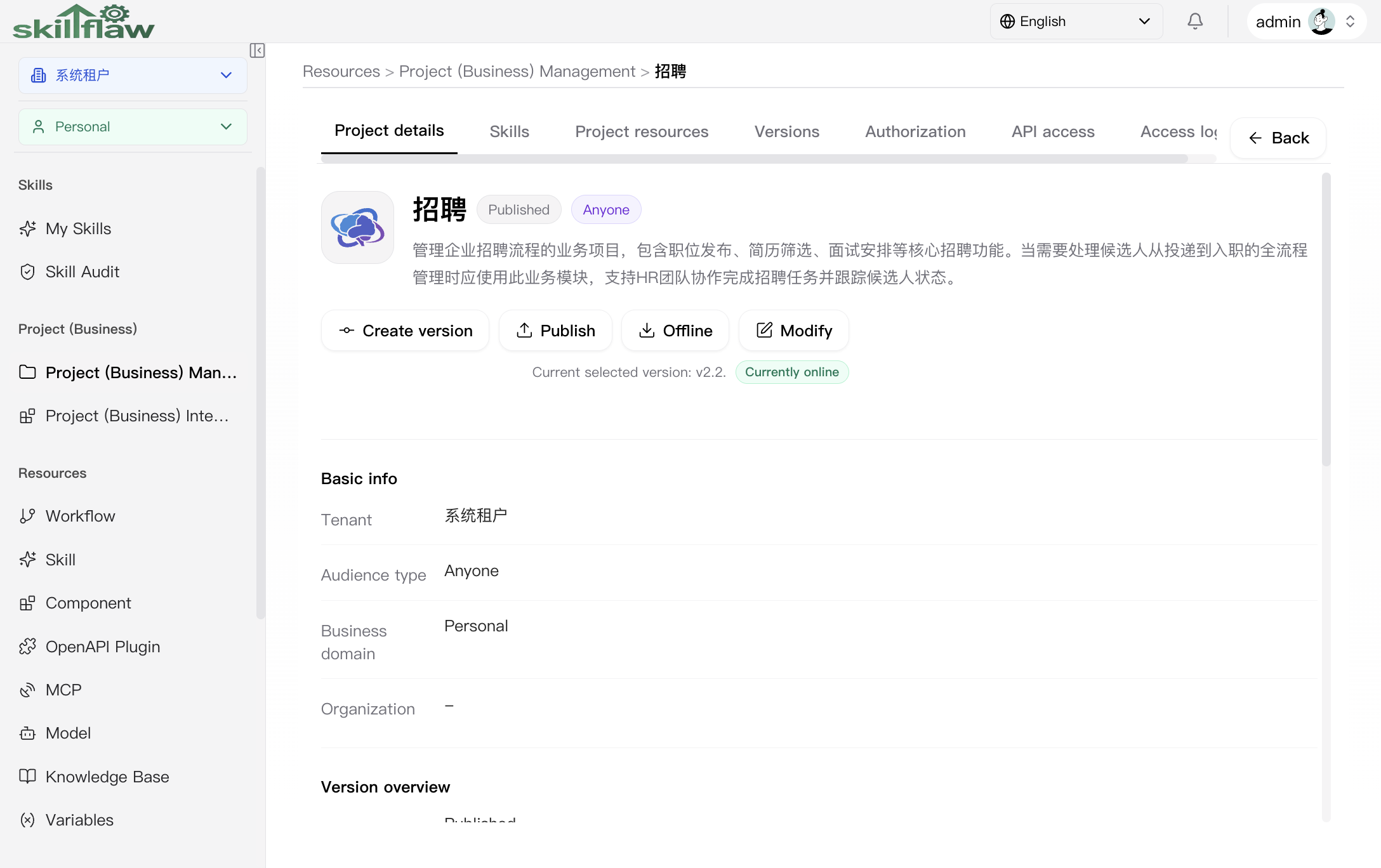
This screen shows the detail workspace header and the default Project details tab.
It includes:
- project header with icon, status, and audience type
- header actions: Create version, Publish, Offline, Modify
- selected-version hint
- summary sections for basic info, version overview, resource overview, and API overview
Modify project dialog
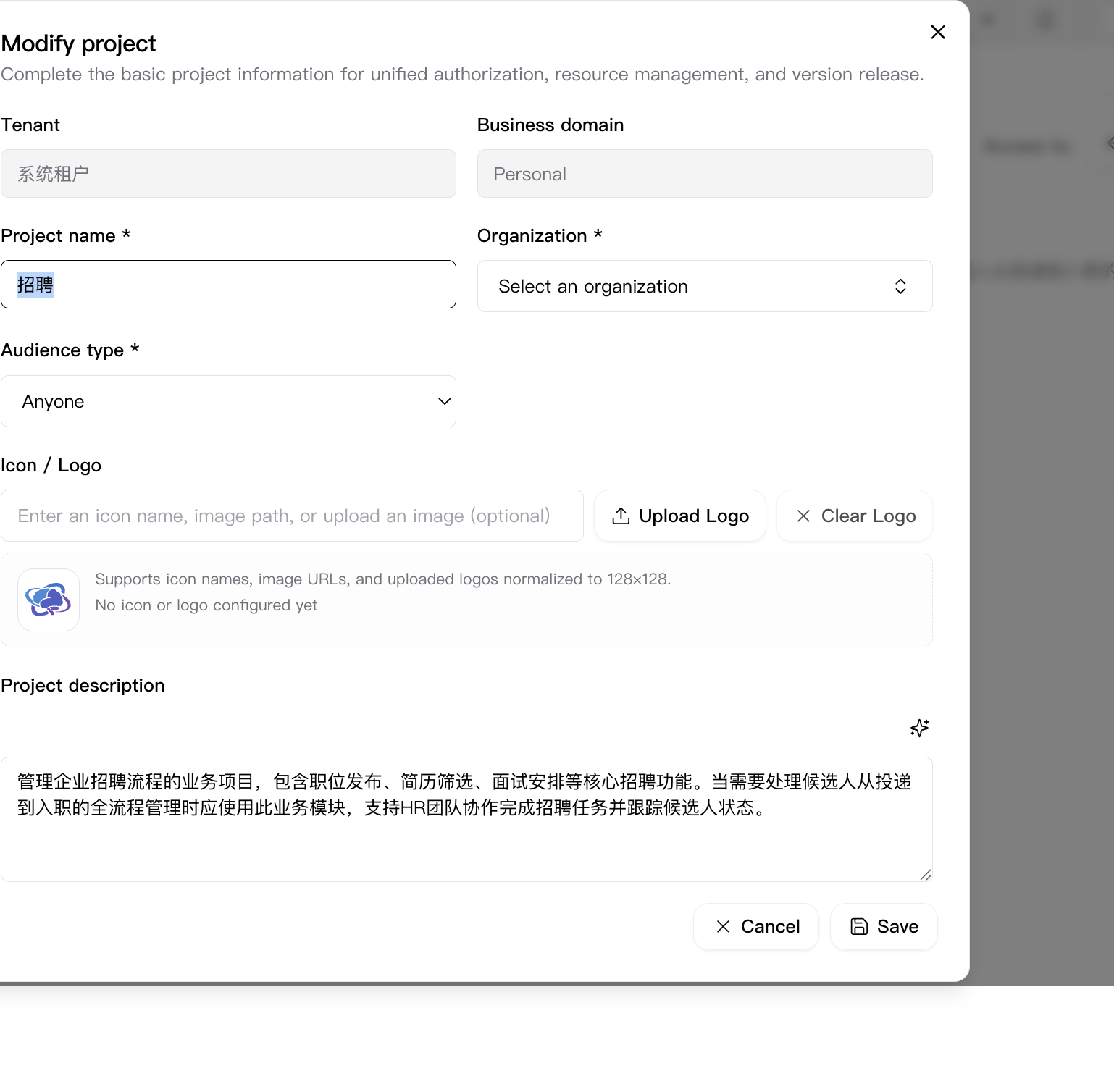
The modify dialog reuses the main project form and shows the editable values. In the captured example, it exposes the same major fields as creation, but pre-filled with project metadata.
Project skill tab
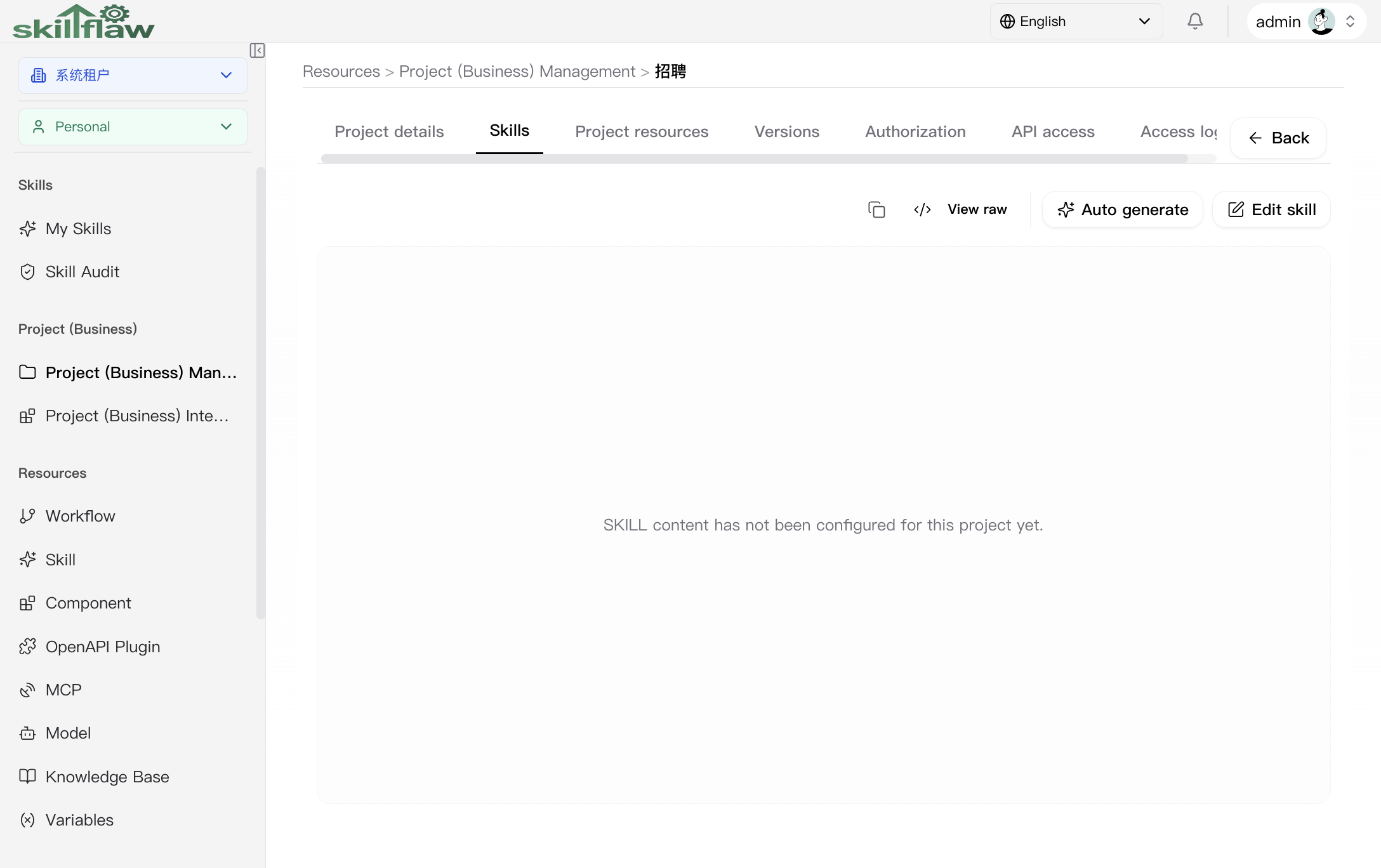
This tab is the project-level SKILL maintenance area.
It shows:
- the generated SKILL markdown preview
- View raw
- Auto generate
- Edit skill
Project resources tab
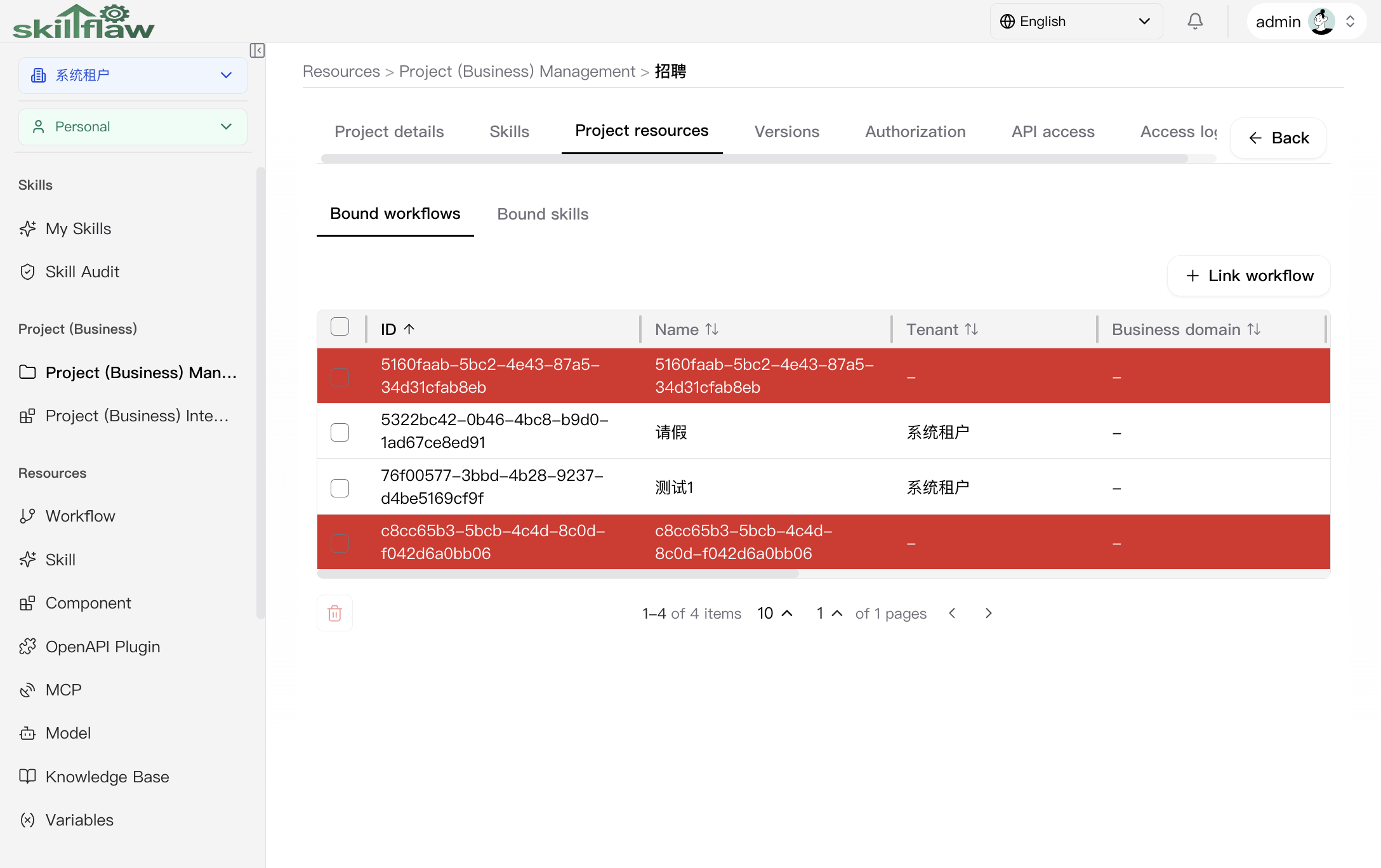
The resources tab is organized into nested tabs:
- Bound workflows
- Bound skills
The captured screen shows the Bound workflows sub-tab with:
- Link workflow
- workflow table columns for tenant, business domain, scope, online existence, access type, creator, version, and updated time
- per-row Remove action
- bulk removal area
Project resources bound skills sub-tab
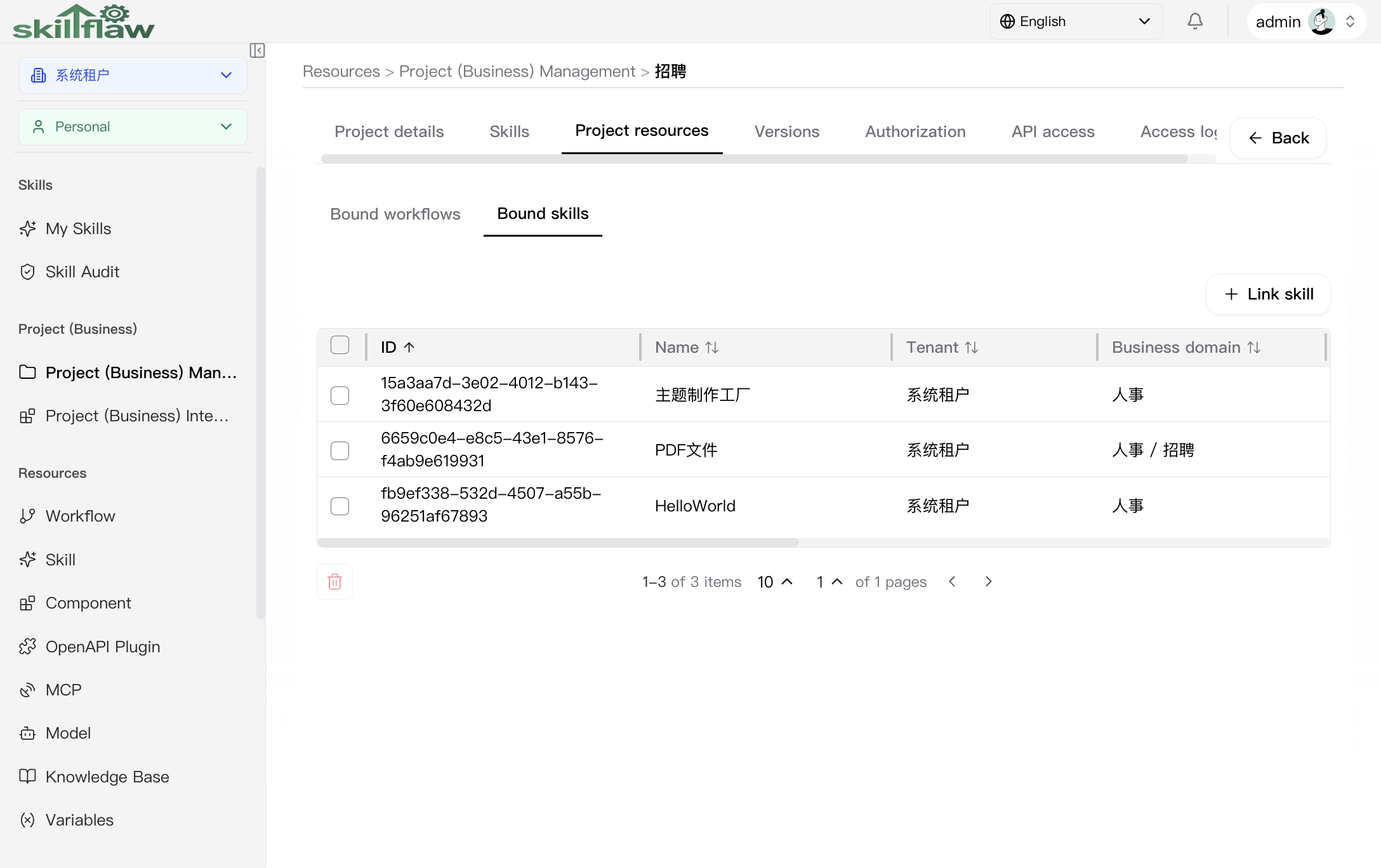
The captured Bound skills sub-tab shows the real empty state for this project. It still exposes the Link skill entry, but no skill resources are linked yet.
Link workflow dialog
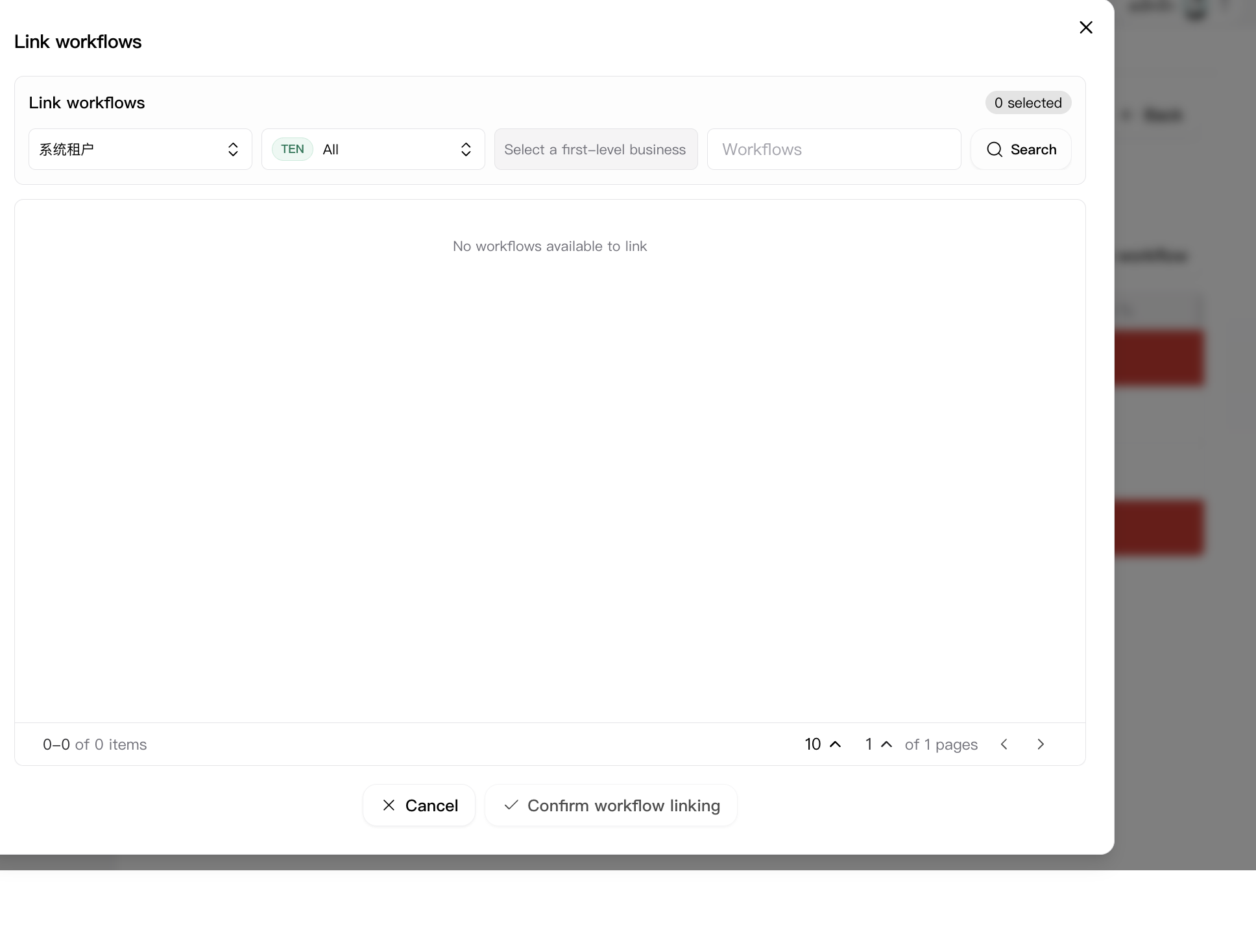
The workflow-linking flow uses a dedicated dialog. The captured dialog includes:
- tenant selector
- scope selector
- first-level business-domain selector
- workflow keyword input
- Search action
- selected-count indicator
- paginated result table area
- Confirm workflow linking action
In the captured state, the result area is a real empty state: No workflows available to link.
Link skill dialog
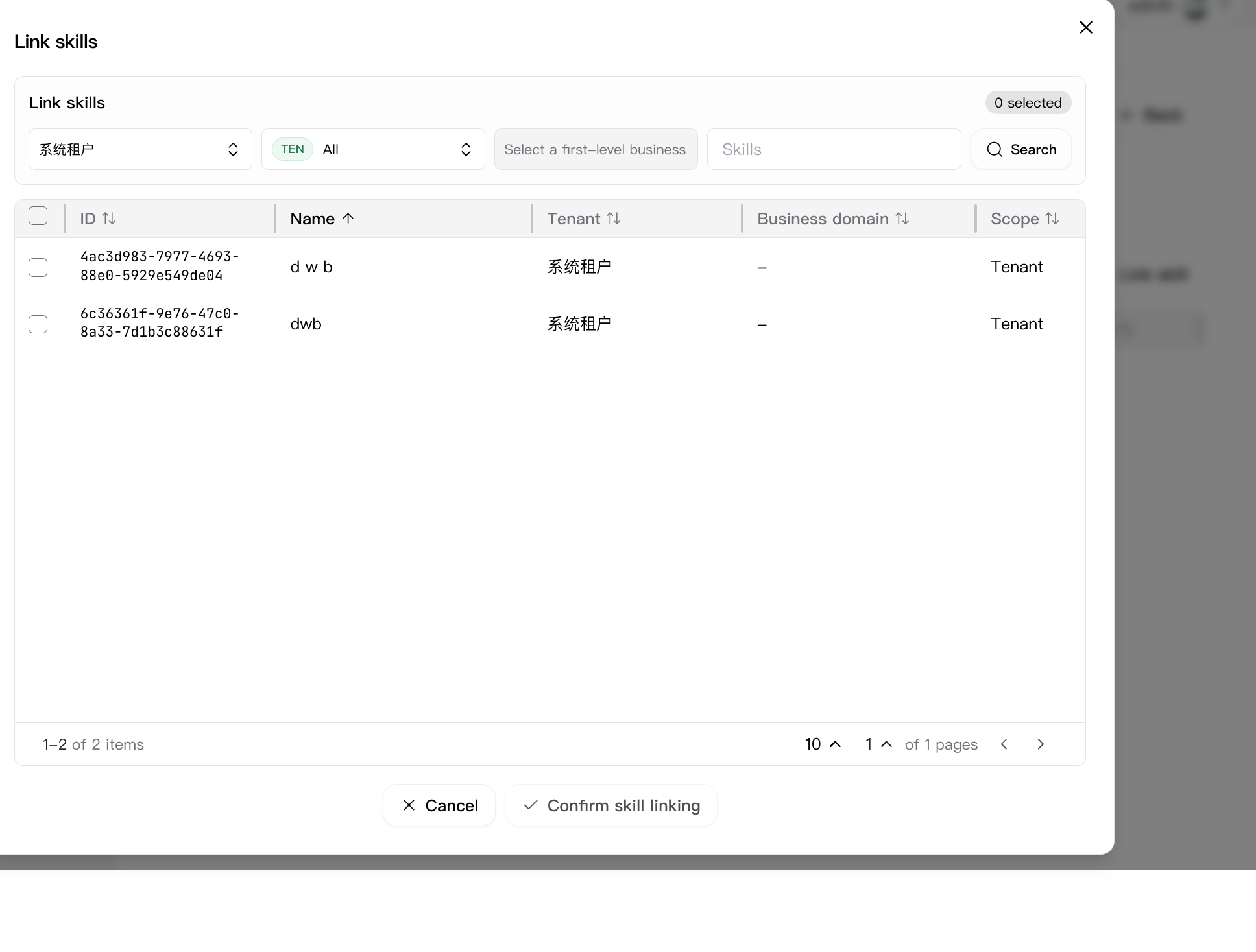
The skill-linking flow is also a dedicated dialog. The captured dialog includes:
- tenant selector
- scope selector
- first-level business-domain selector
- skill keyword input
- Search action
- selected-count indicator
- result table with ID, name, tenant, business domain, scope, and updated time
- Confirm skill linking action
Remove workflow confirmation dialog
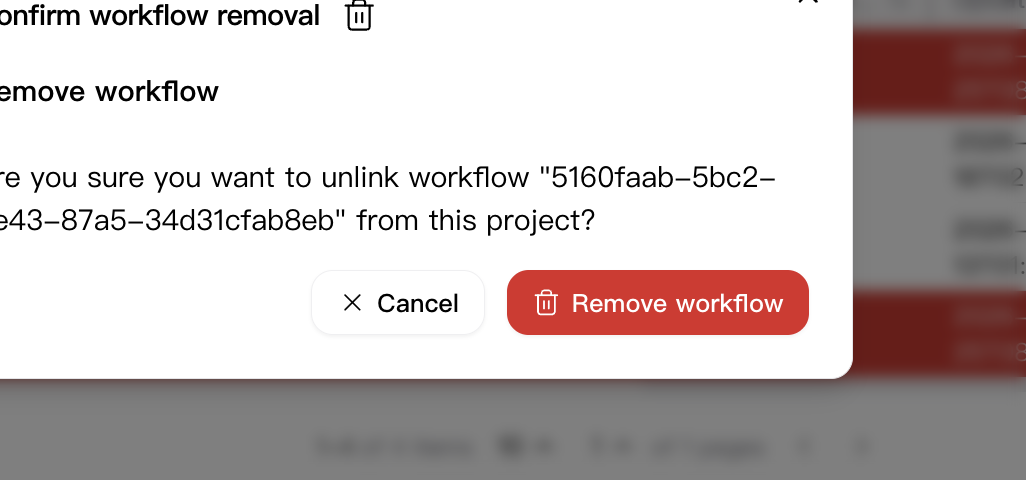
Removing a bound workflow is not immediate. The confirmation dialog explicitly names the workflow being unlinked and provides both Cancel and Remove workflow actions.
Project versions tab
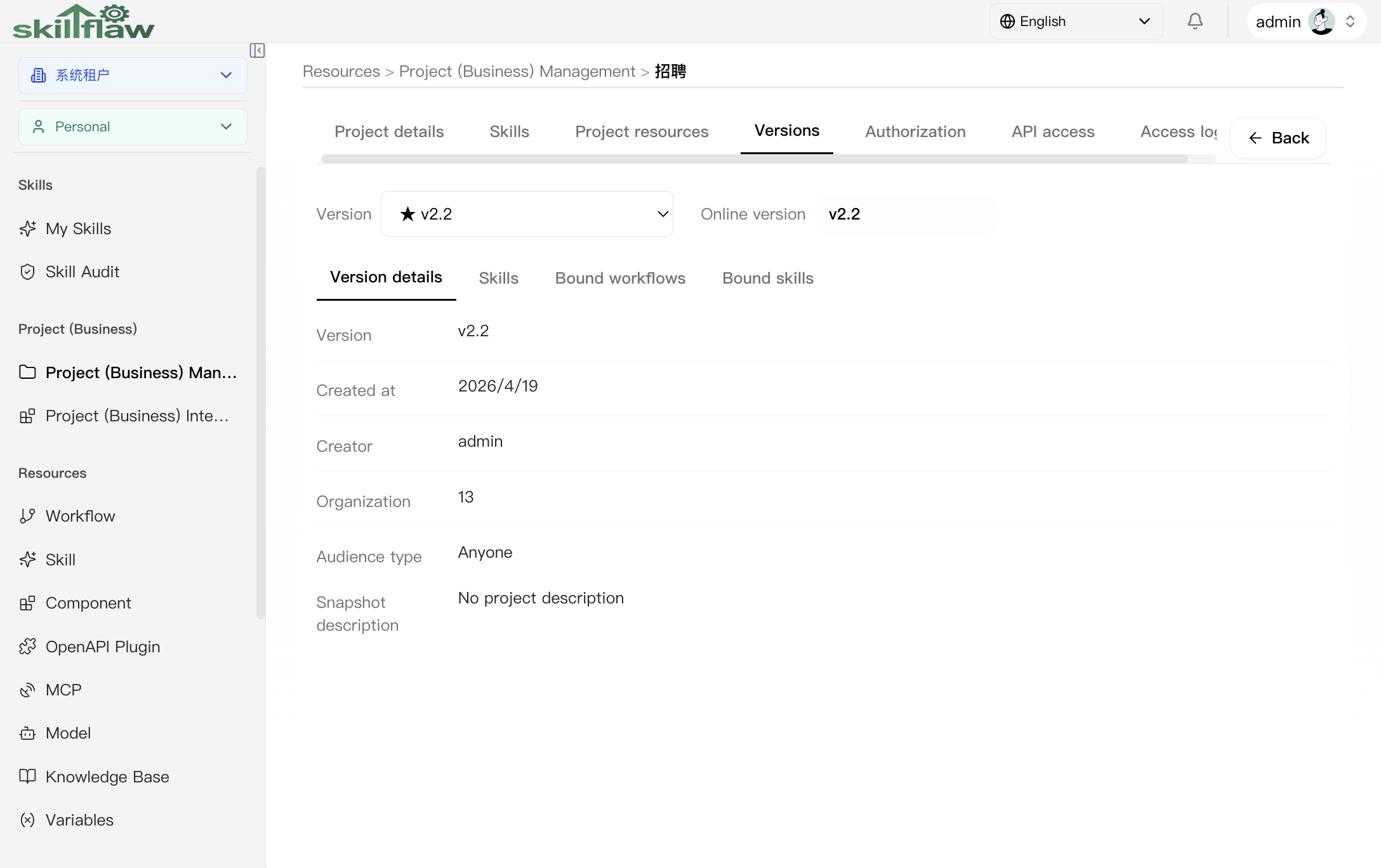
The versions tab is the release workspace for a selected project version.
The captured state shows:
- version selector
- current online-version summary
- nested tabs for Version details, Skills, Bound workflows, and Bound skills
Project version skills sub-tab
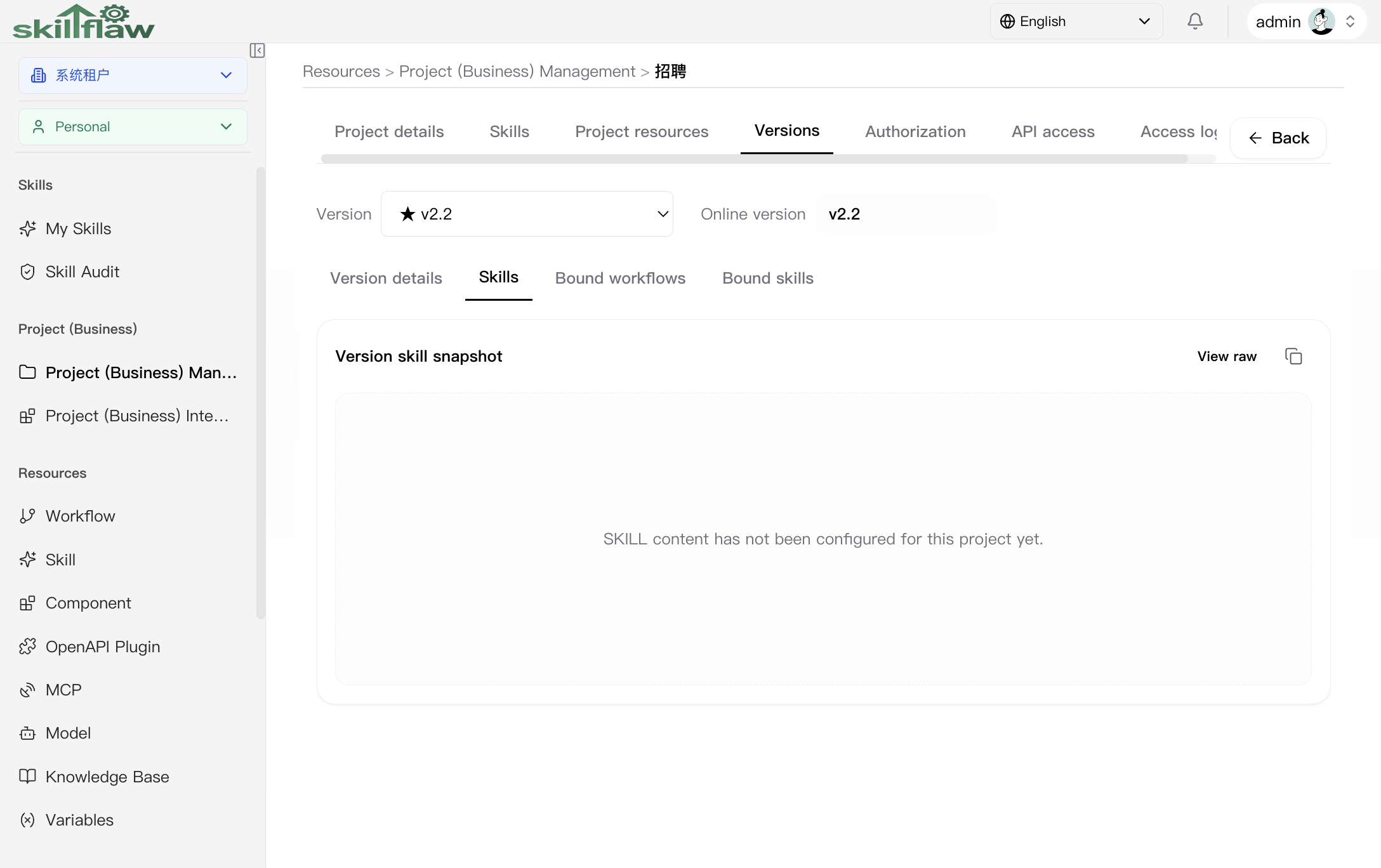
The selected version also keeps its own SKILL snapshot. The captured page shows a version-specific markdown snapshot, a View raw entry, and the version business identifiers and invoke path summary.
Project version bound workflows sub-tab
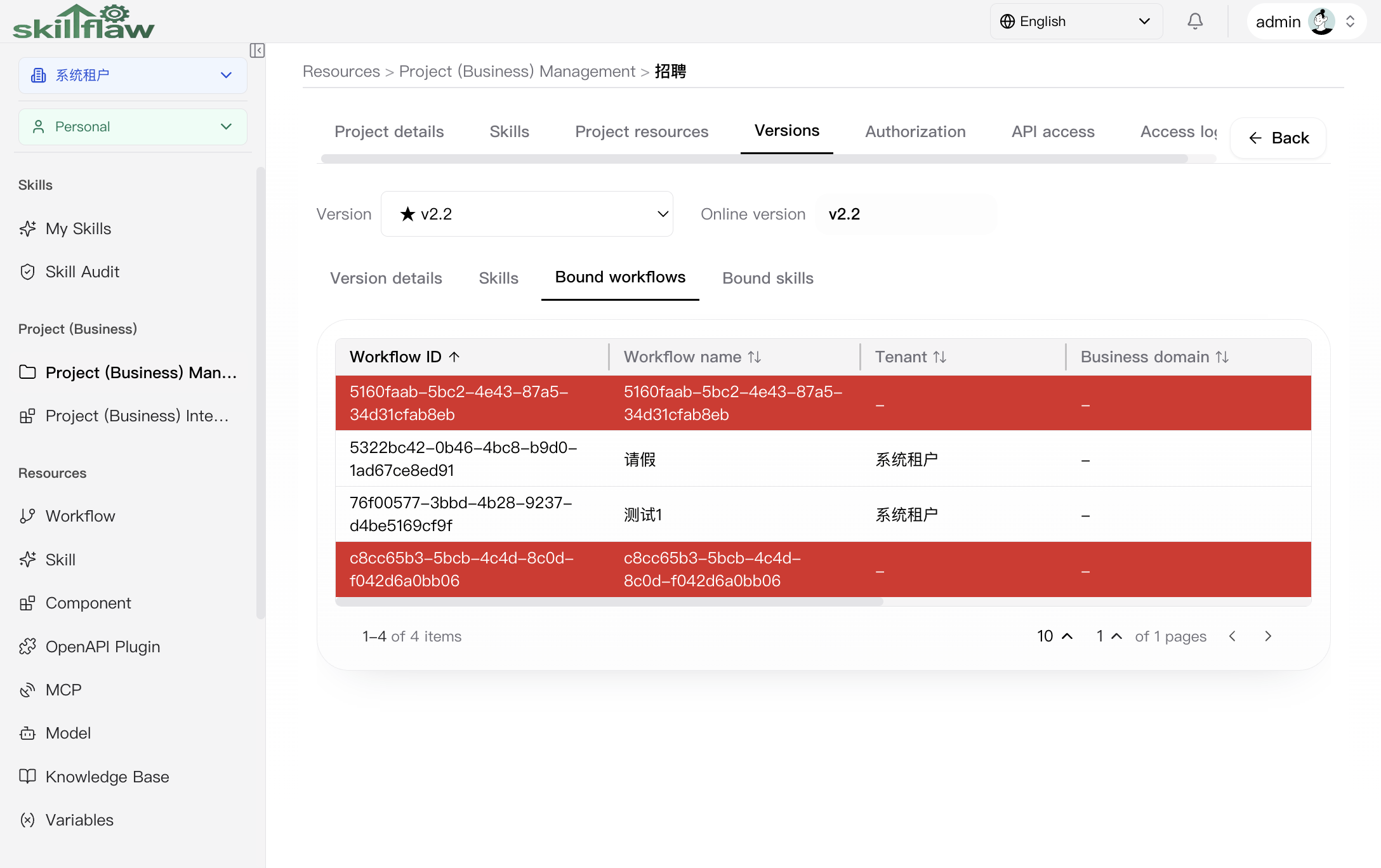
This sub-tab lists the workflow snapshot bound into the selected version. It shows workflow ID, workflow name, tenant, business domain, scope, online existence, creator, and creation date for the version snapshot.
Project version bound skills sub-tab
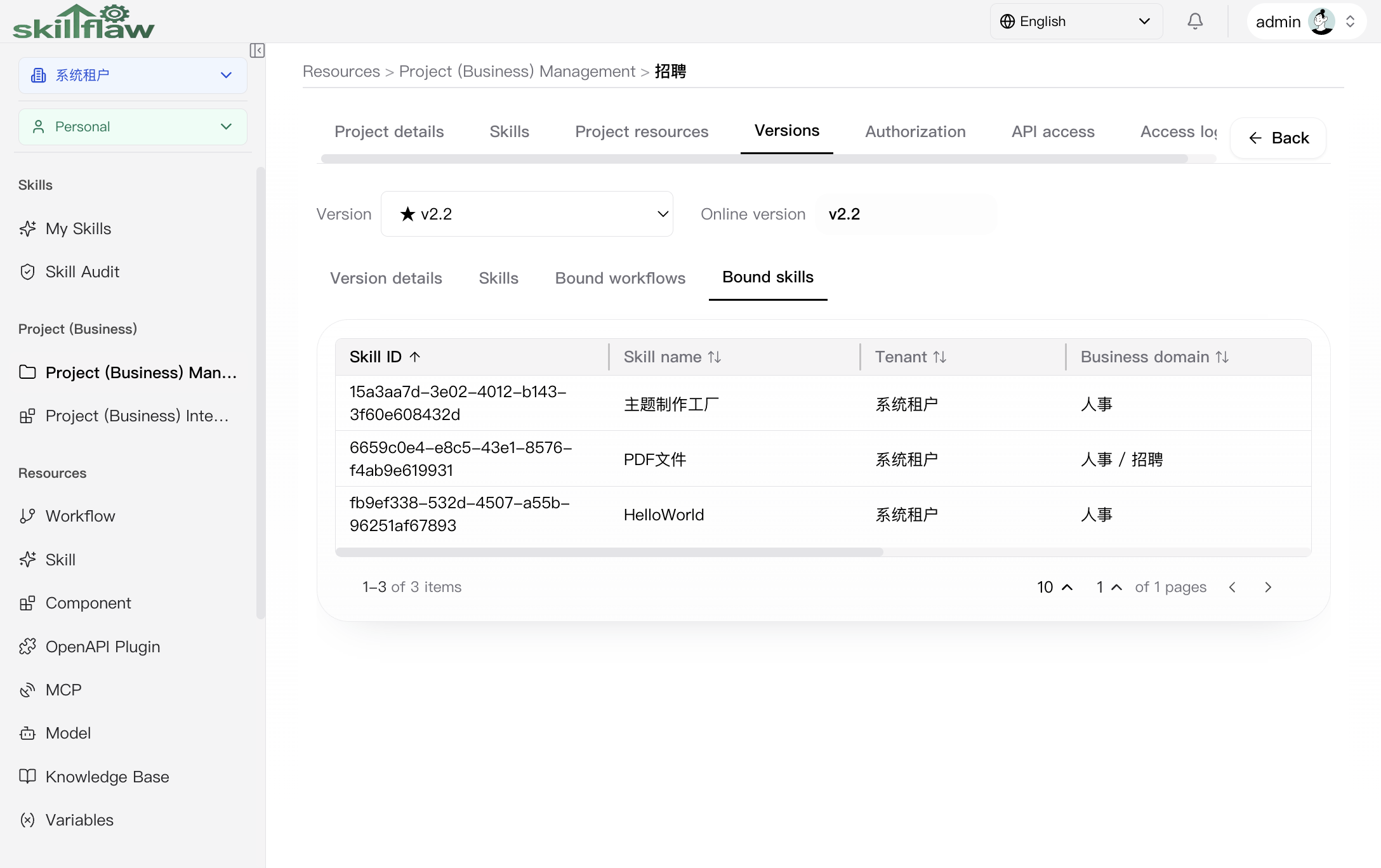
The captured Bound skills version snapshot is an empty state. It explicitly indicates that no skills were bound in this version snapshot.
Create version dialog
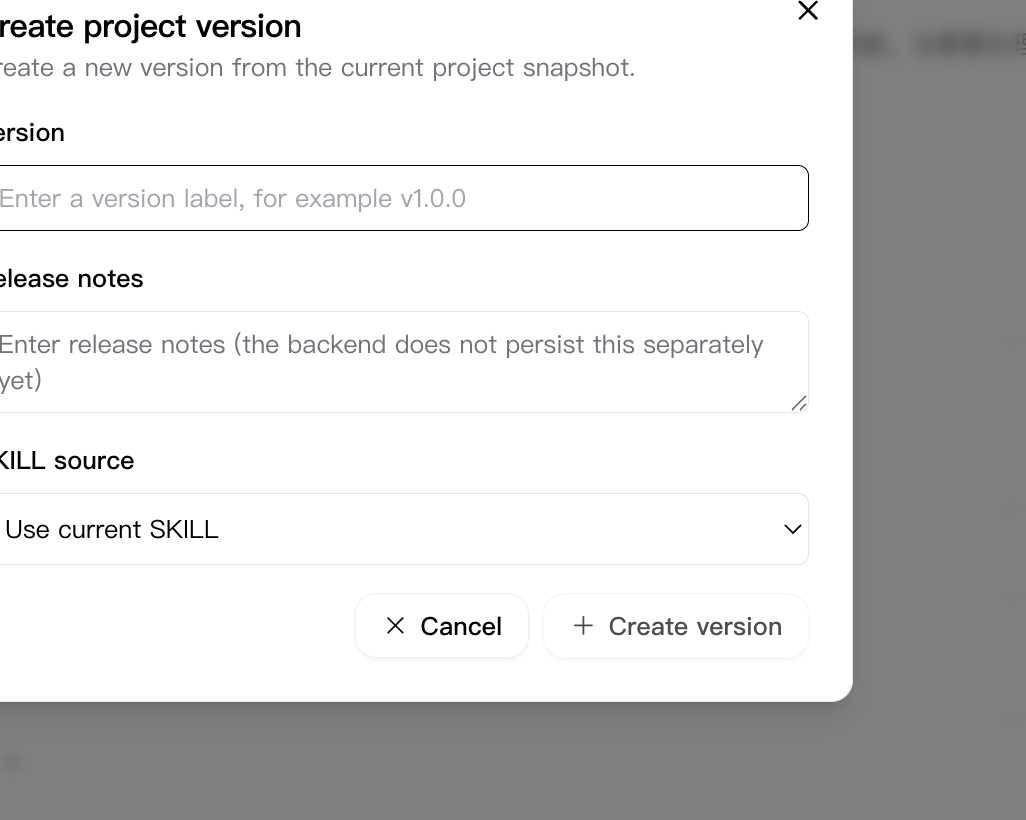
The create-version dialog includes:
- Version
- Release notes
- SKILL source
The visible version-source options are:
- Use current SKILL
- Auto generate project SKILL
Publish project version dialog
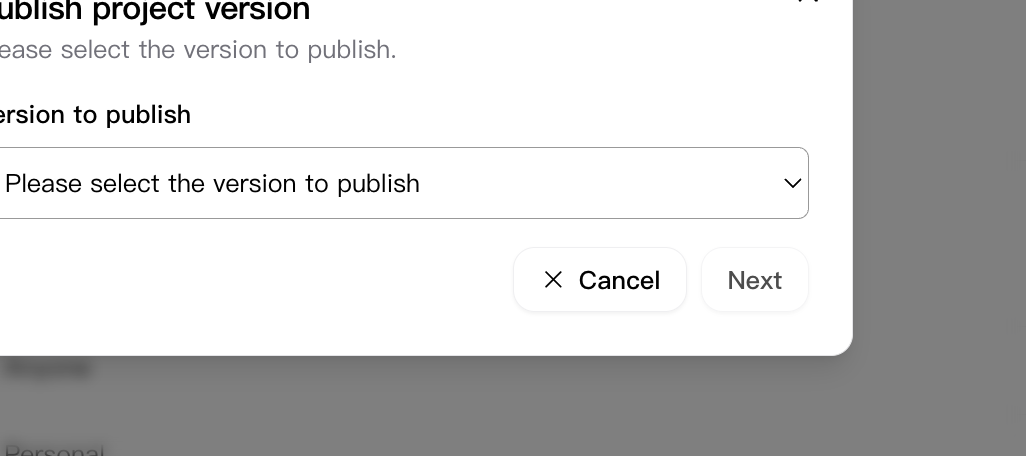
Publishing is a separate dialog, not an immediate click action. The captured dialog requires the user to select the version to publish, then proceed with Next. It also provides explicit close and Cancel paths.
Offline project version dialog
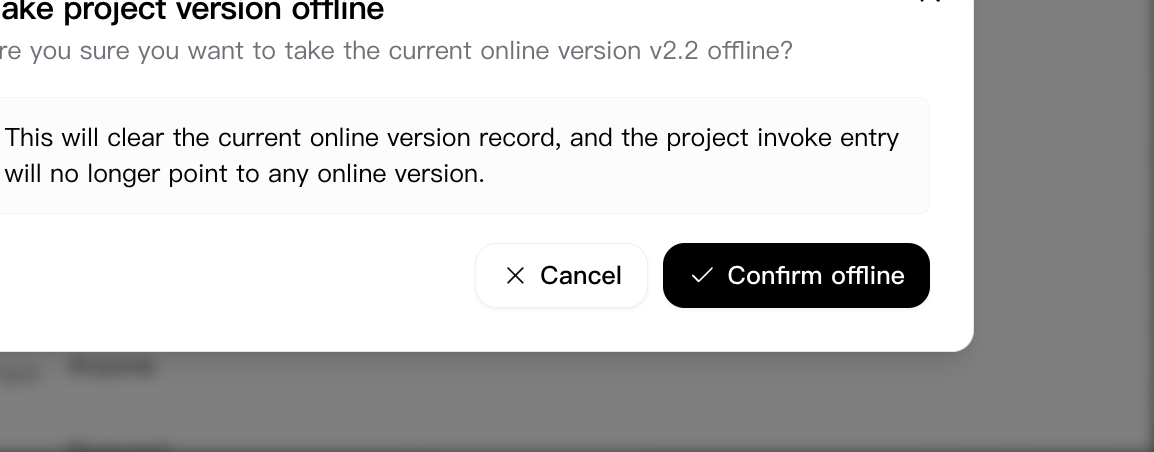
Taking a version offline also uses a dedicated confirmation dialog. The real warning states that clearing the current online version will also remove the project invoke entry from pointing to an online version.
Project authorization tab
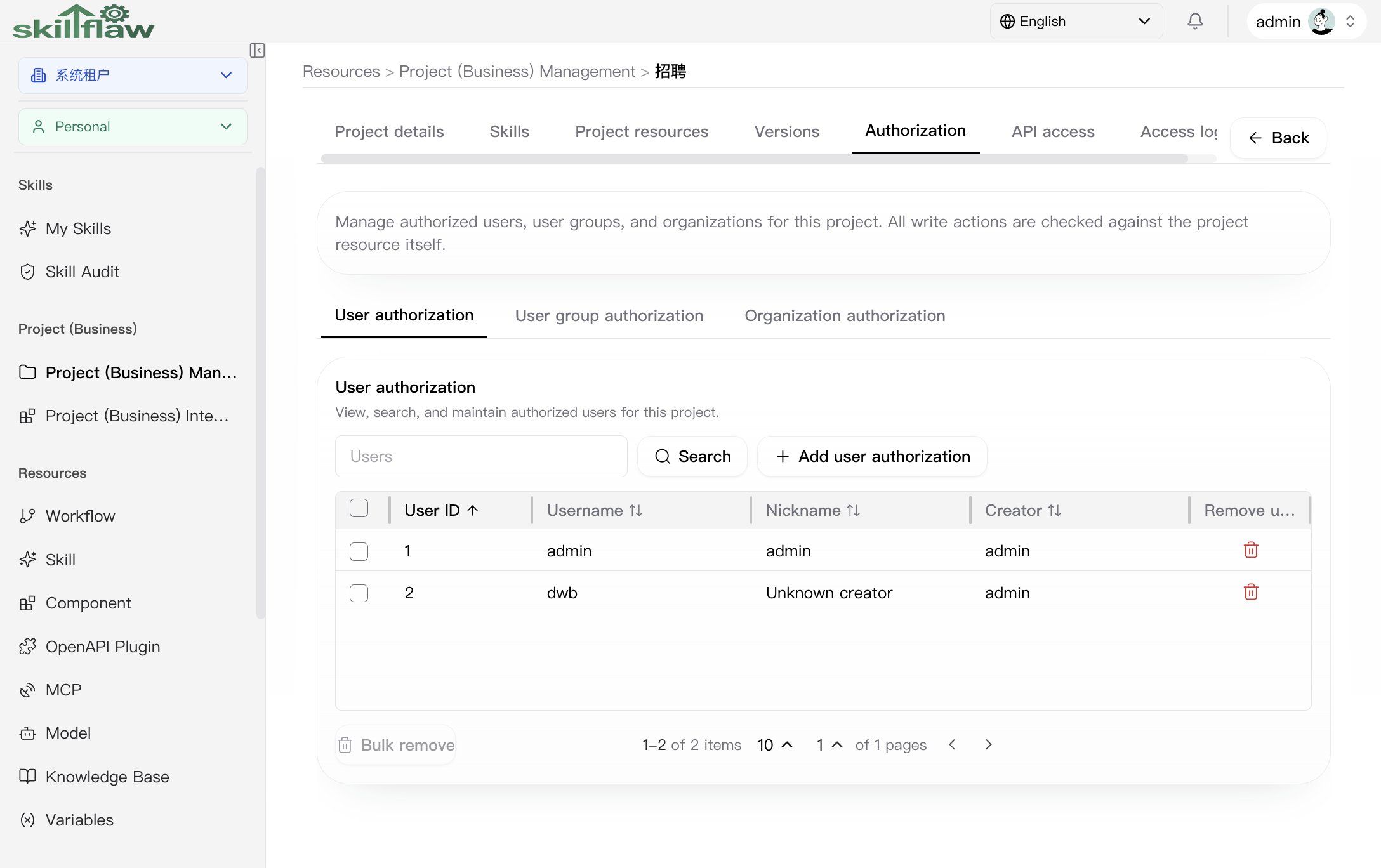
The authorization tab is the access-maintenance surface for this project.
It contains nested tabs for:
- User authorization
- User group authorization
- Organization authorization
The captured screen shows the user-authorization view with search and Add user authorization entry.
Add authorized users dialog
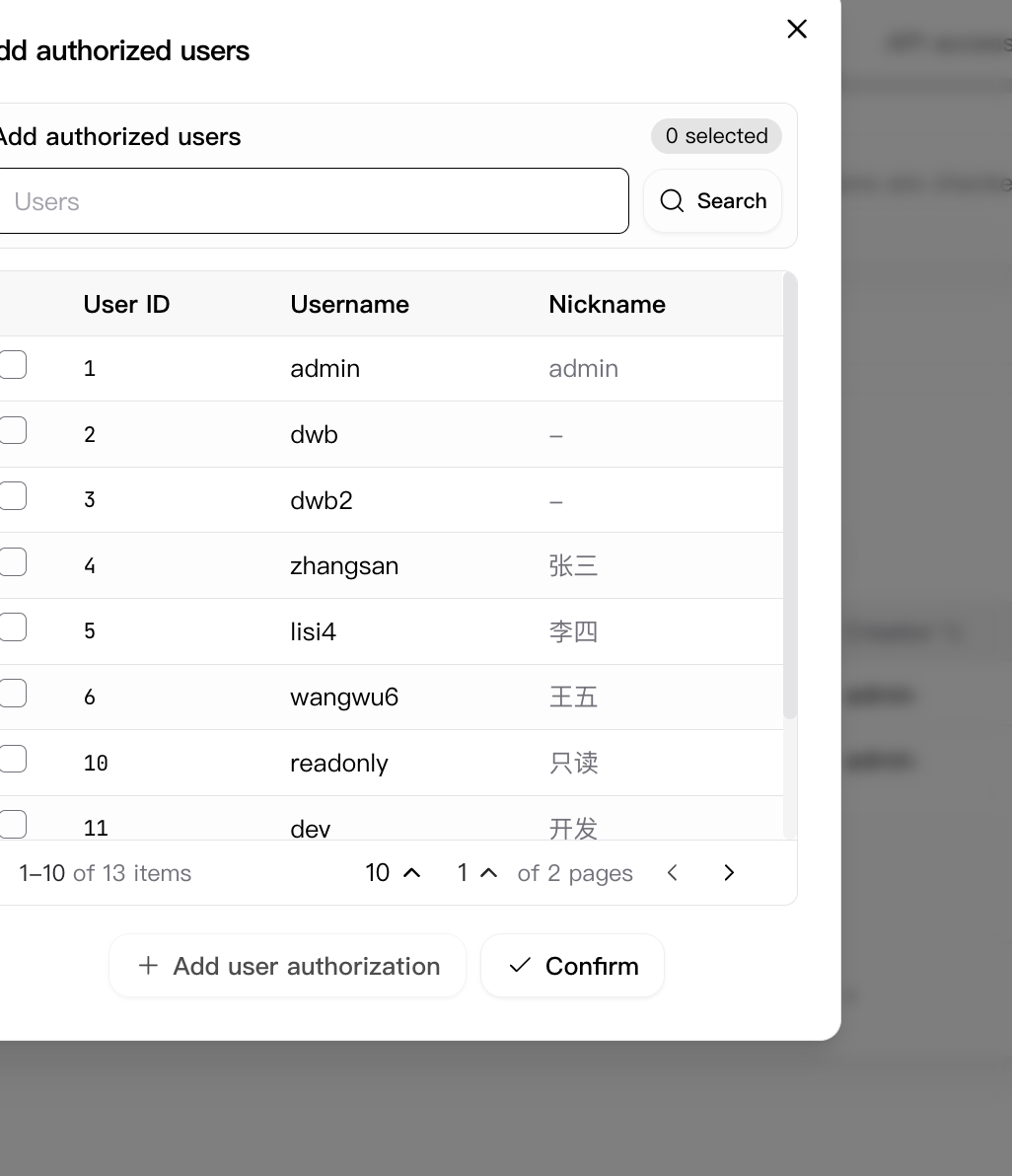
The user-authorization add flow uses a selection dialog. The captured dialog includes:
- user search input
- selected-count indicator
- Search action
- result table with User ID, Username, and Nickname
- paging controls
- Add user authorization and Confirm actions
Project authorization user-group sub-tab
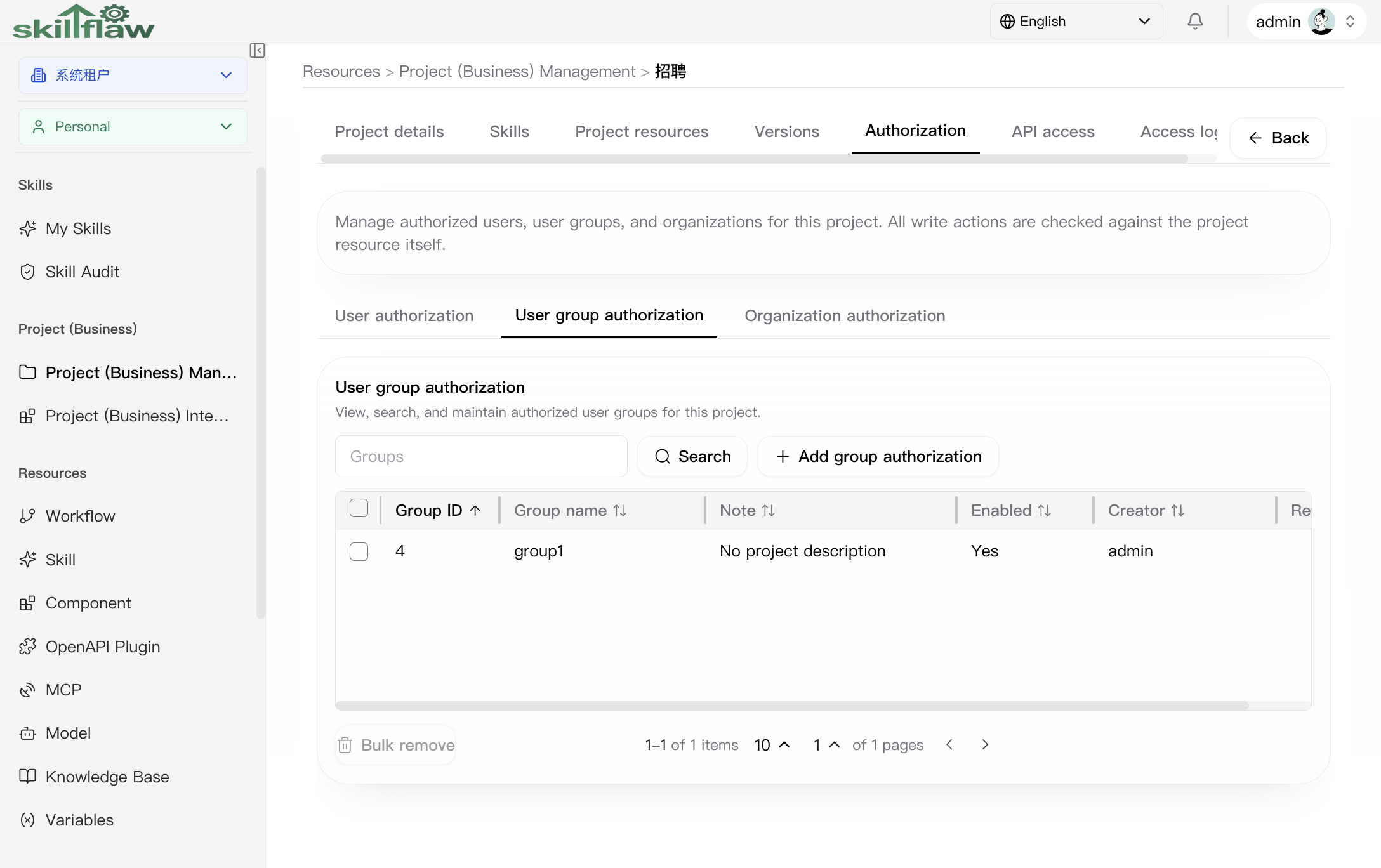
The user-group authorization view provides:
- a group search box
- a Search action
- an Add group authorization entry
- an empty-state message when no user groups are authorized yet
Add authorized groups dialog
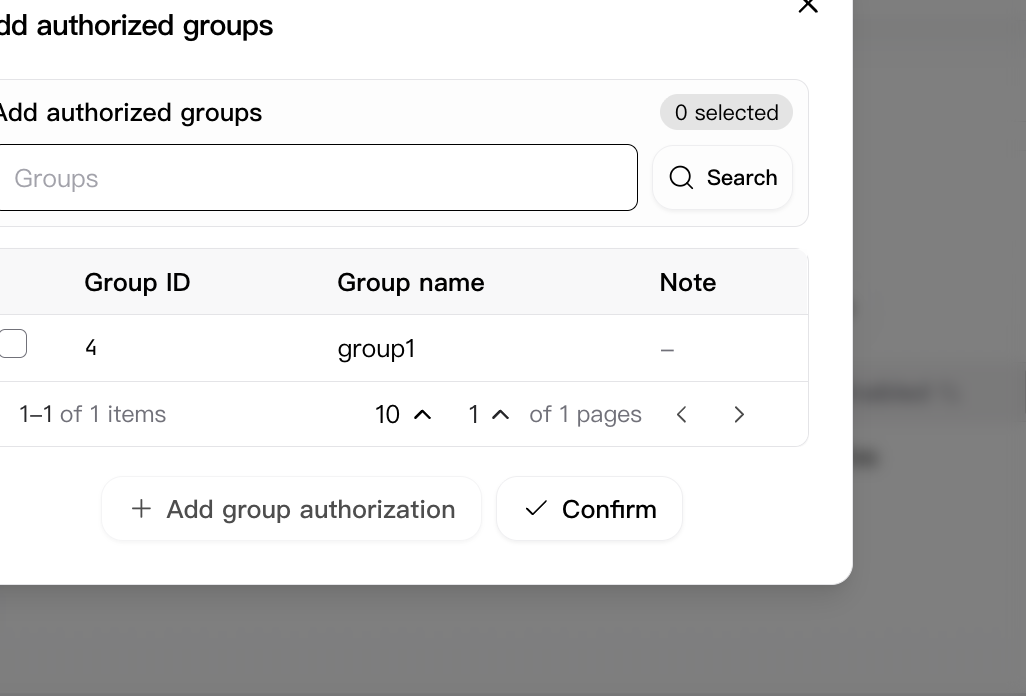
The group-authorization add flow uses its own dialog. The captured state currently includes:
- group search input
- selected-count indicator
- Search action
- result table with Group ID, Group name, and Note
- Add group authorization and Confirm actions
In the captured state, the candidate table is empty and explicitly says that no user group candidates are available.
Project authorization organization sub-tab
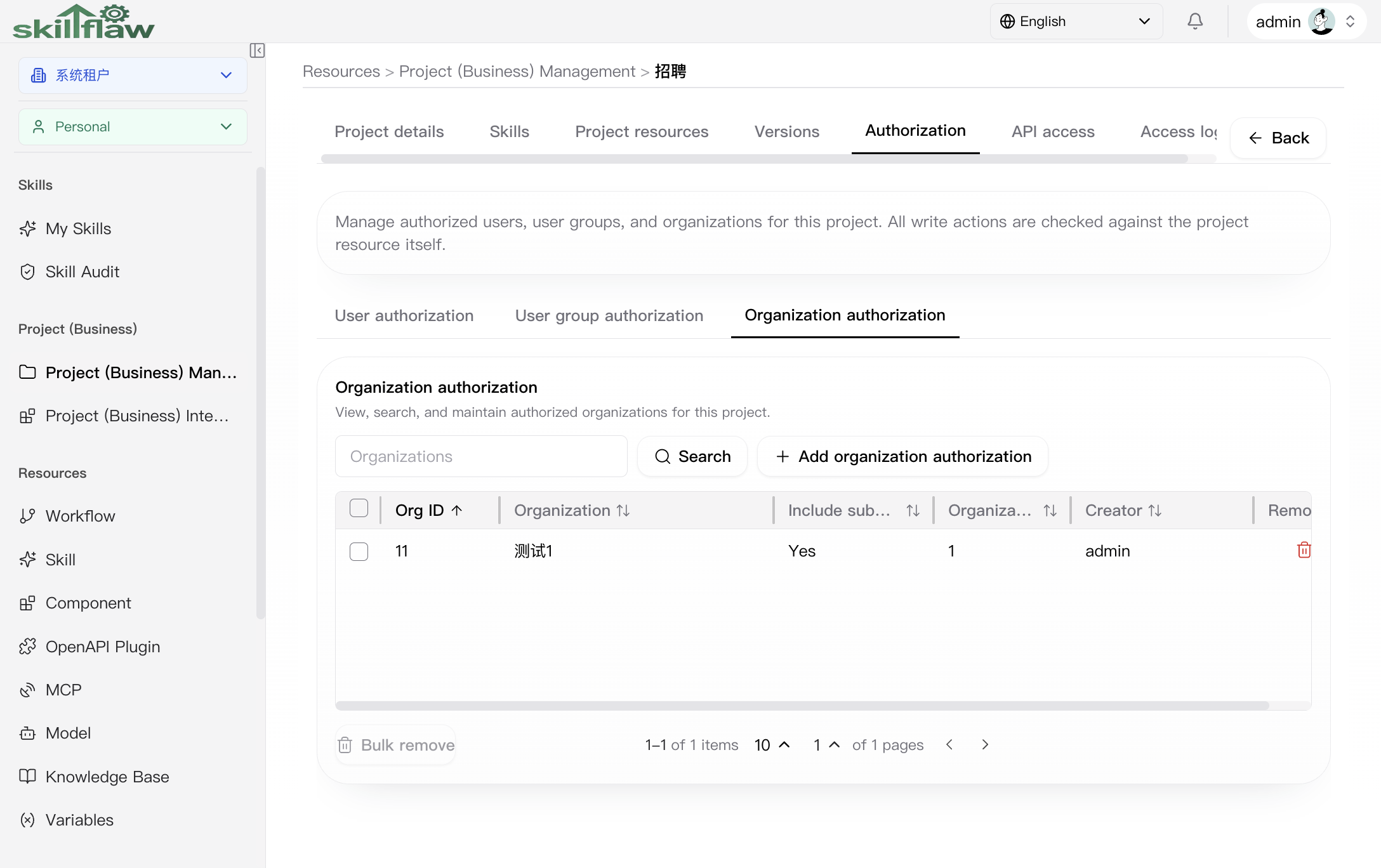
The organization authorization view mirrors the same maintenance model for organizations. It provides organization search, explicit add action, and an empty-state message when no organizations are authorized yet.
Add authorized organizations dialog
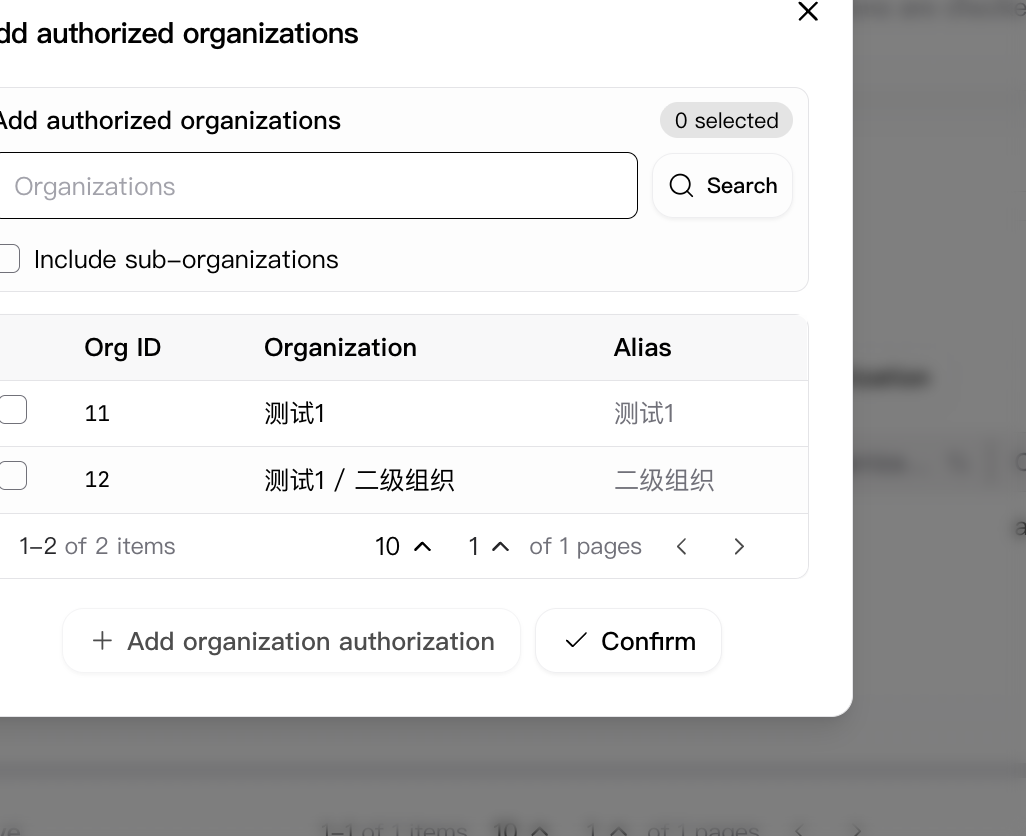
The organization-authorization add flow also uses a dedicated dialog. The captured dialog includes:
- organization search input
- selected-count indicator
- Search action
- Include sub-organizations checkbox
- result table with Org ID, Organization, and Alias
- Add organization authorization and Confirm actions
Project API tab
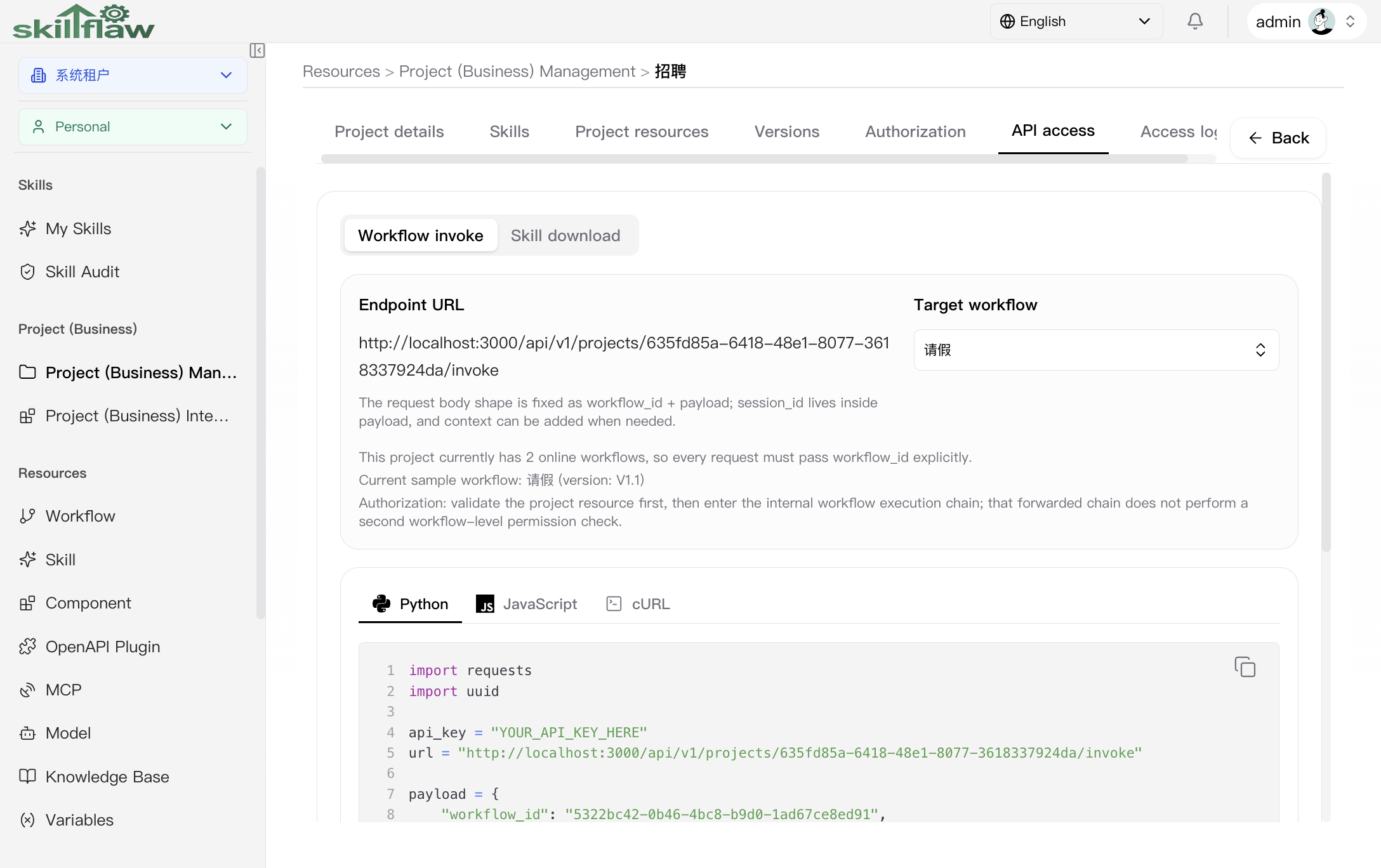
The API tab is not only a plain endpoint string. It provides:
- nested tabs for Workflow invoke and Skill download
- endpoint URL summary
- workflow selector when multiple online workflows exist
- explanatory authorization notes
- code examples with Python, JavaScript, and cURL tabs
Project API skill download sub-tab
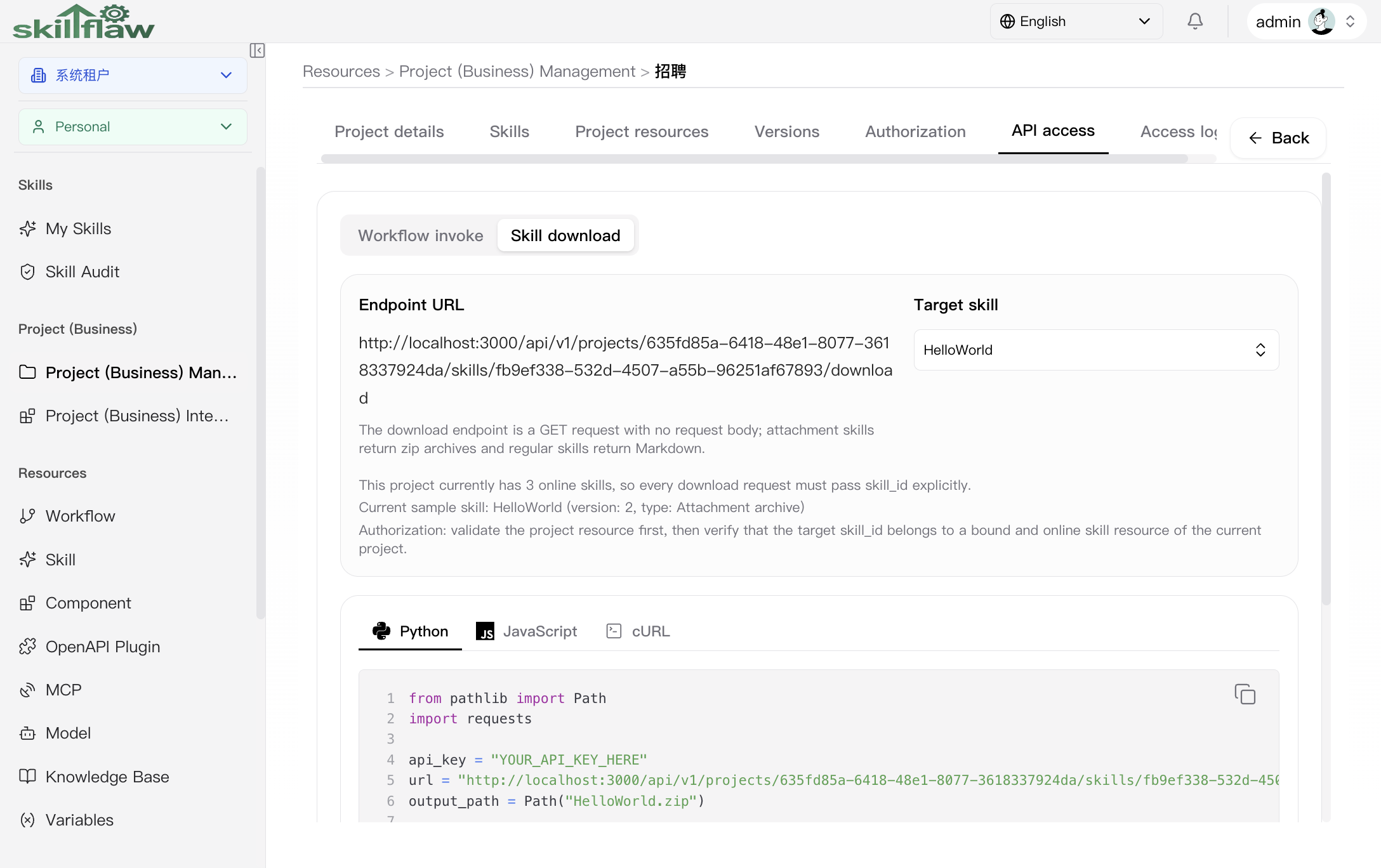
The Skill download sub-tab is a dedicated download surface. The captured page shows:
- a target-skill selector
- notes that the download endpoint is a GET request with no request body
- current empty-state guidance explaining that no downloadable online skill is available yet
Project access logs tab
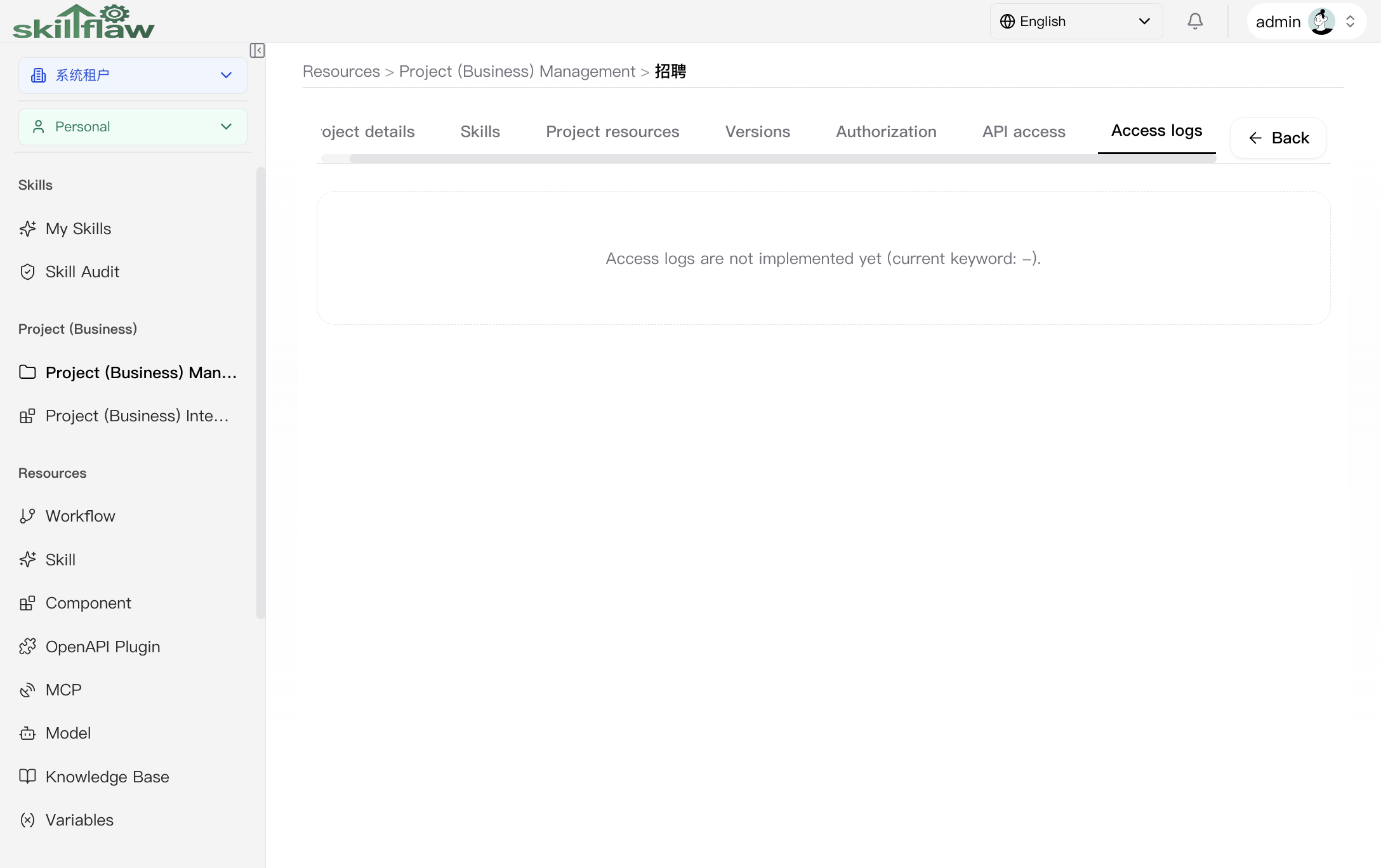
The logs tab is available and, in the captured state, shows an empty-state message indicating that no access-log content is displayed on this page.
List page
Develop tab
The develop tab is the main management surface for projects owned in the selected working scope. User actions include:
- create a project
- open project detail
- edit project metadata
- delete a project
Available filters include:
- permission / audience type
- organization
- business domain
- status
- keyword
Project creation depends on the write permission available in the selected scope. The create card is disabled when that permission is not available.
The create flow uses a dedicated modal, not inline editing.
Plaza tab
The plaza tab is the read-and-bind surface for projects visible in the broader browse scope. Available filters include:
- tenant
- scope
- organization
- business domain
- permission / audience type
- keyword
When a project is marked bindable, the card exposes bind or unbind actions.
The captured plaza state also confirms that system-tenant and personal projects can appear together in the browse surface, while maintaining separate ownership labels.
Personal tab
The personal tab shows projects that are already bound to the active user context. It keeps a narrower browsing model and focuses on bound resources rather than broad discovery.
The captured screen is an empty state, so the manual also covers the “no bound projects yet” case.
Project detail page
Opening a project moves the user into a multi-tab detail workspace. The detail tabs are:
- Detail
- Skill
- Resources
- Versions
- Authorization
- API
- Logs
Detail tab
The detail tab shows the project profile and summary information, including:
- tenant
- audience type
- business domain
- organization
- online version
- workflow count
- linked skill count
- API path summary
The header action area currently includes:
- Create version
- Publish
- Offline
- Modify project
These actions depend on the project's modify permission.
The real Modify action opens a dedicated edit dialog instead of editing the page in place. The real Publish and Offline actions also use separate confirmation dialogs.
Skill tab
The skill tab is used to maintain the project's skill content. Available actions include:
- edit the project skill markdown
- save it back to the project
- auto-generate a project skill draft
The page also includes preview-oriented actions such as View raw before editing.
Resources tab
The resources tab manages project-bound workflows and skills. Available actions include:
- add workflows
- remove one workflow
- remove selected workflows
- add skills
- remove one skill
- remove selected skills
The page is split into Bound workflows and Bound skills nested tabs. The captured workflow-binding view confirms that the table shows resource ownership and online-existence information directly in the maintenance table. Workflow and skill binding both use dedicated selection dialogs, and workflow removal uses a dedicated confirmation dialog.
Versions tab
The versions tab is the release and lifecycle area for project versions. Available actions include:
- create a new version
- provide version note
- choose skill source as CURRENT or AUTO_GENERATE
- publish a selected version online
- offline the current online version
- inspect selected version detail
The version workspace is split further into version details, version skill snapshot, bound workflow snapshot, and bound skill snapshot.
The create-version flow uses a dedicated modal and requires explicit version label entry.
Authorization tab
The authorization tab is the access-maintenance area for project authorization data. It is available from project detail rather than from the list page.
The page further splits authorization into users, user groups, and organizations. The captured user-group and organization screens are both empty states with explicit add-entry actions. Adding users, groups, and organizations each uses a separate selection dialog rather than inline editing.
API tab
The API tab summarizes the invoke path and API integration surface for the project. It is the user-facing entry for project invocation snippets and related code tabs.
The captured API view confirms that:
- multi-workflow projects require explicit
workflow_id - the page includes runnable example snippets in multiple languages
- the tab distinguishes workflow invoke and skill download surfaces
- skill download is documented separately as a GET-based flow and can legitimately show an empty state when no downloadable online skill is bound
Logs tab
The logs tab currently renders an empty state. It exists in the tab structure, but the page does not display a detailed access-log list in this view.
Permissions and boundaries
Project actions follow the platform permission model:
- create depends on the selected scope's write permission
- edit, delete, version publish, version offline, skill editing, and resource maintenance depend on the target project's modify or delete permission
- project detail behavior is based on the project's own tenant / business ownership rather than a page-local substitute