Dictionary manual
The Dictionary module is used to maintain common dictionaries and dictionary items in the system, providing base data support for enumeration management, business configuration, and consistent display.
Entry
Choose Management > Dictionary from the left navigation.
Feature overview
The Dictionary page is commonly used to:
- browse dictionaries and dictionary items
- query and filter dictionary data
- review dictionary base information
- perform dictionary-maintenance actions provided by the page
Page example
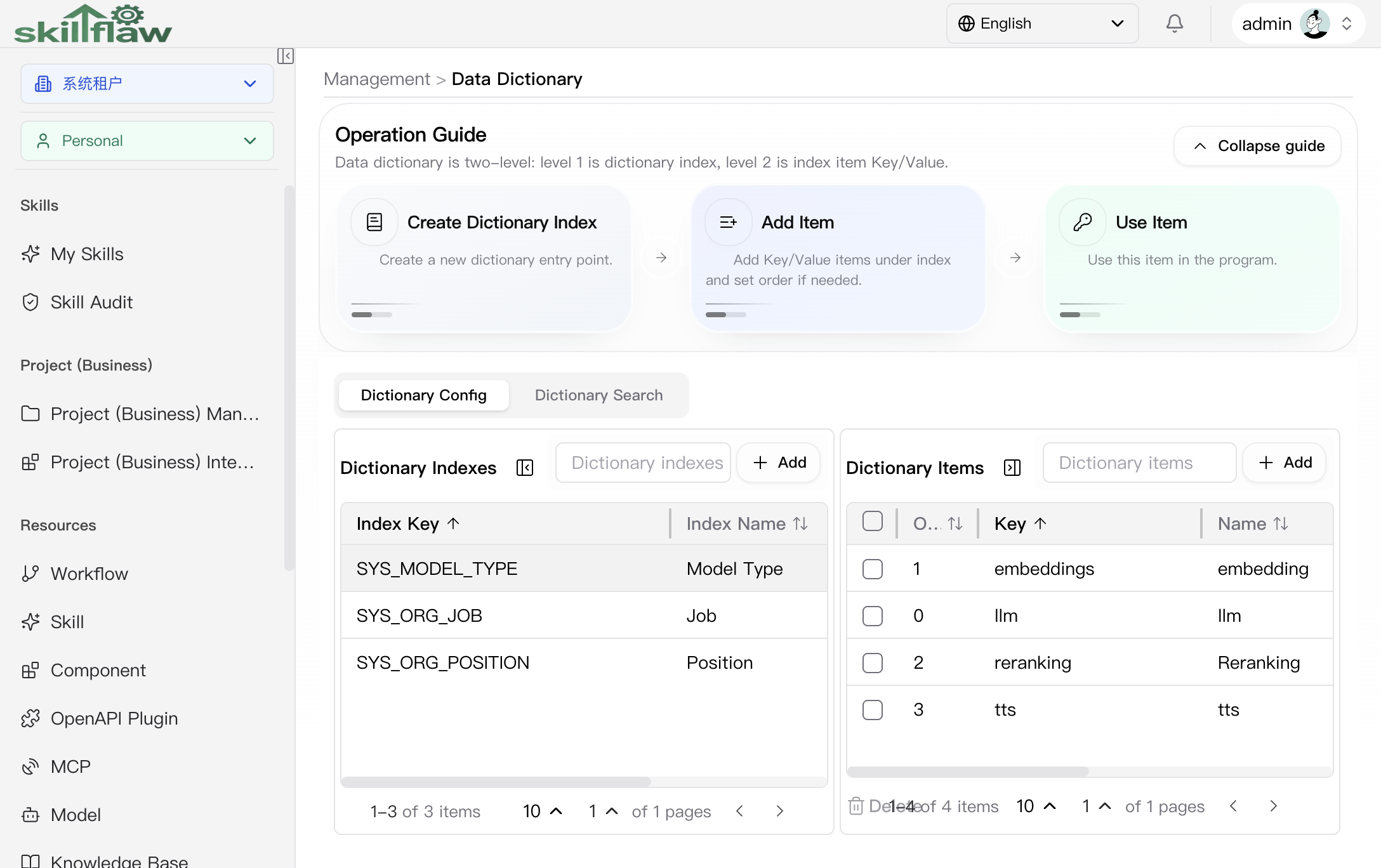
The screenshot above shows the Management > Dictionary home page. The page explains the two-level dictionary structure first: the first level is the dictionary index, and the second level contains the key/value items under that index.
The main body is currently divided into two areas:
- Dictionary Index: maintains index key and index name and provides the add entry.
- Items: shows the item list under the selected index and supports creation, ordering, and row-level maintenance.
This layout is suitable for confirming the dictionary index first and then continuously adding or adjusting dictionary items on the right side.
Add Index dialog
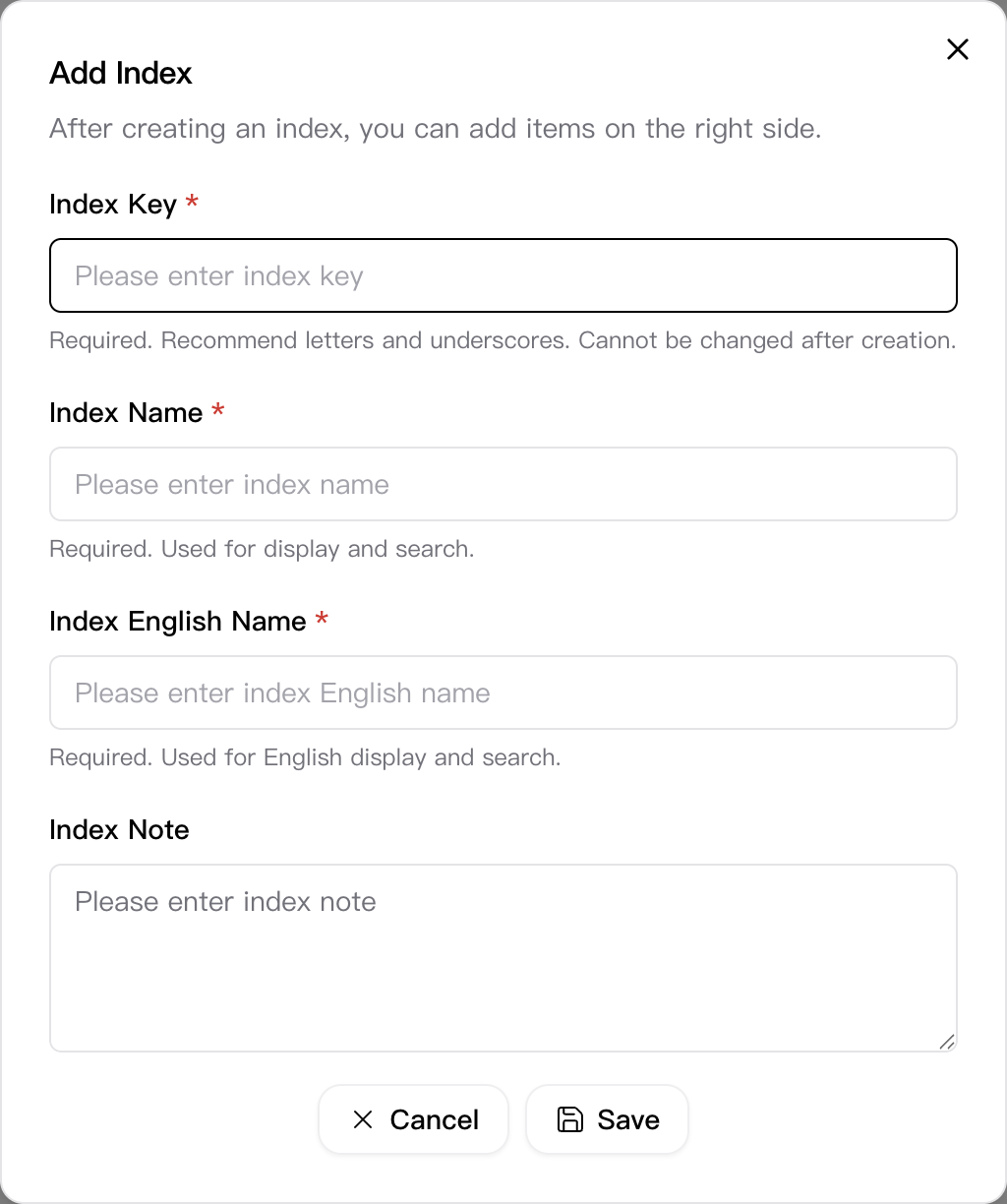
Use the Add button in the Dictionary Index area to open the Add Index dialog. This dialog is used to create a new dictionary index. After the index is saved, you can continue maintaining items on the right side.
The dialog currently includes these key fields:
- Index Key: required; letters and underscores are recommended and it cannot be changed after creation.
- Index Name: required and used for display and search in the Chinese interface.
- Index English Name: required and used for display and search in the English interface.
- Index Note: optional and used to describe the business purpose of the dictionary index.
The footer provides Cancel and Save actions, which is suitable for entering the base information of a new dictionary classification in one step.
Dictionary Search
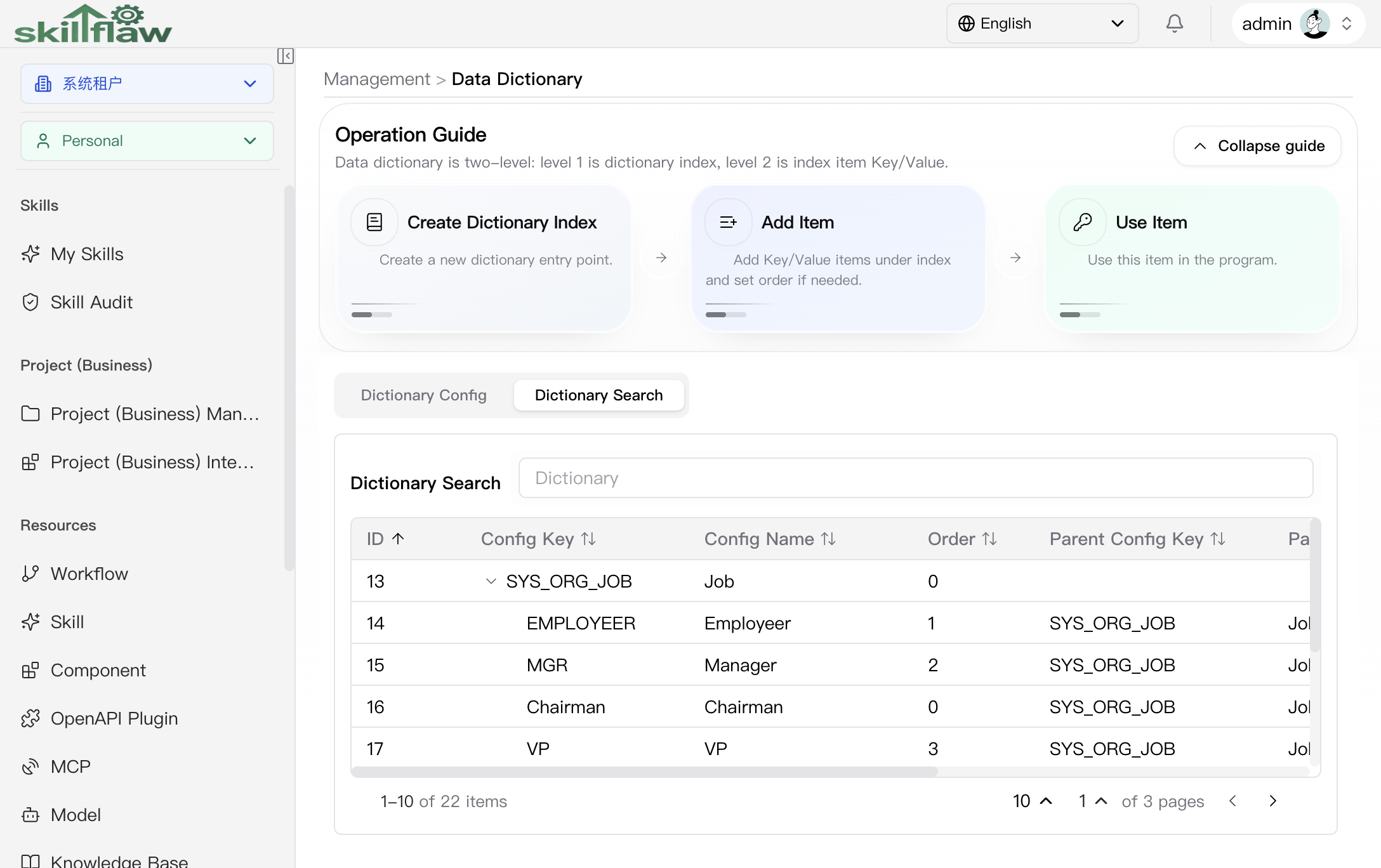
The Dictionary Search tab is used to search items across dictionary indexes. The current list shows fields such as ID, Config Key, Config Name, Order, Parent Config Key, Parent Config Name, and Value, and it provides a view entry in the action column for quick hierarchy and value review.
View Record Details dialog
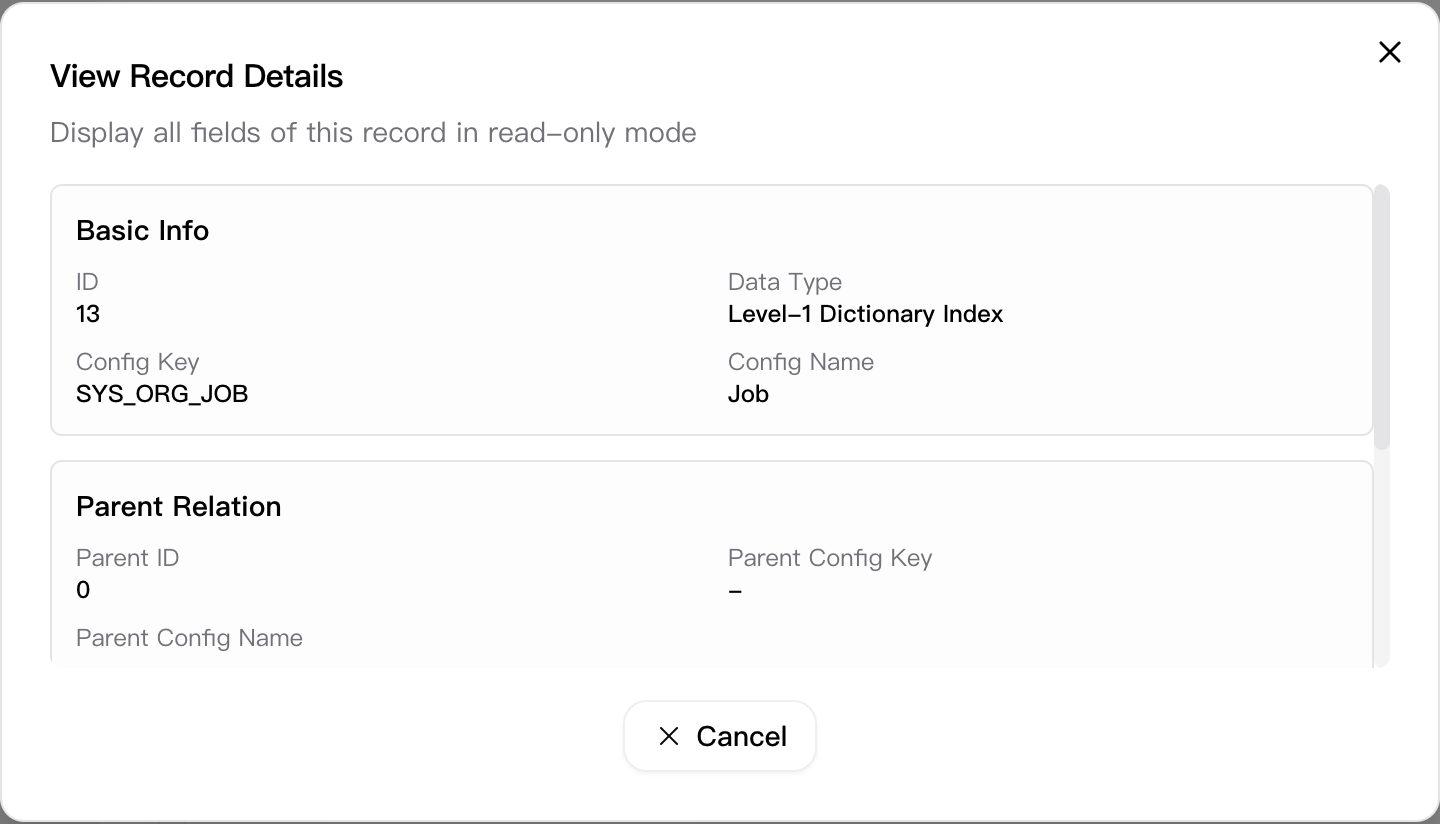
Click View for a record on the Dictionary Search tab to open the View Record Details dialog. This dialog shows the full field set of the current dictionary item in read-only mode.
The dialog currently displays these sections:
- Basic Info: includes ID, data type, config key, and config name.
- Parent Relation: includes parent ID, parent config key, and parent config name.
- Value Info: includes order, value, and note.
The footer provides a Cancel action so you can return to the search result list after review.
Recommendations
Before maintaining a dictionary, confirm the business purpose and impact scope of the target dictionary so related system configuration remains consistent.