User management manual
User Management is used to maintain platform user profiles and provide the base user data entry for organization membership, permission assignment, and business authorization.
Entry
Choose Management > User from the left navigation.
Feature overview
The User Management page is commonly used to:
- query and filter users
- browse the user list
- review base user information
- perform user-management actions provided by the page
Page example
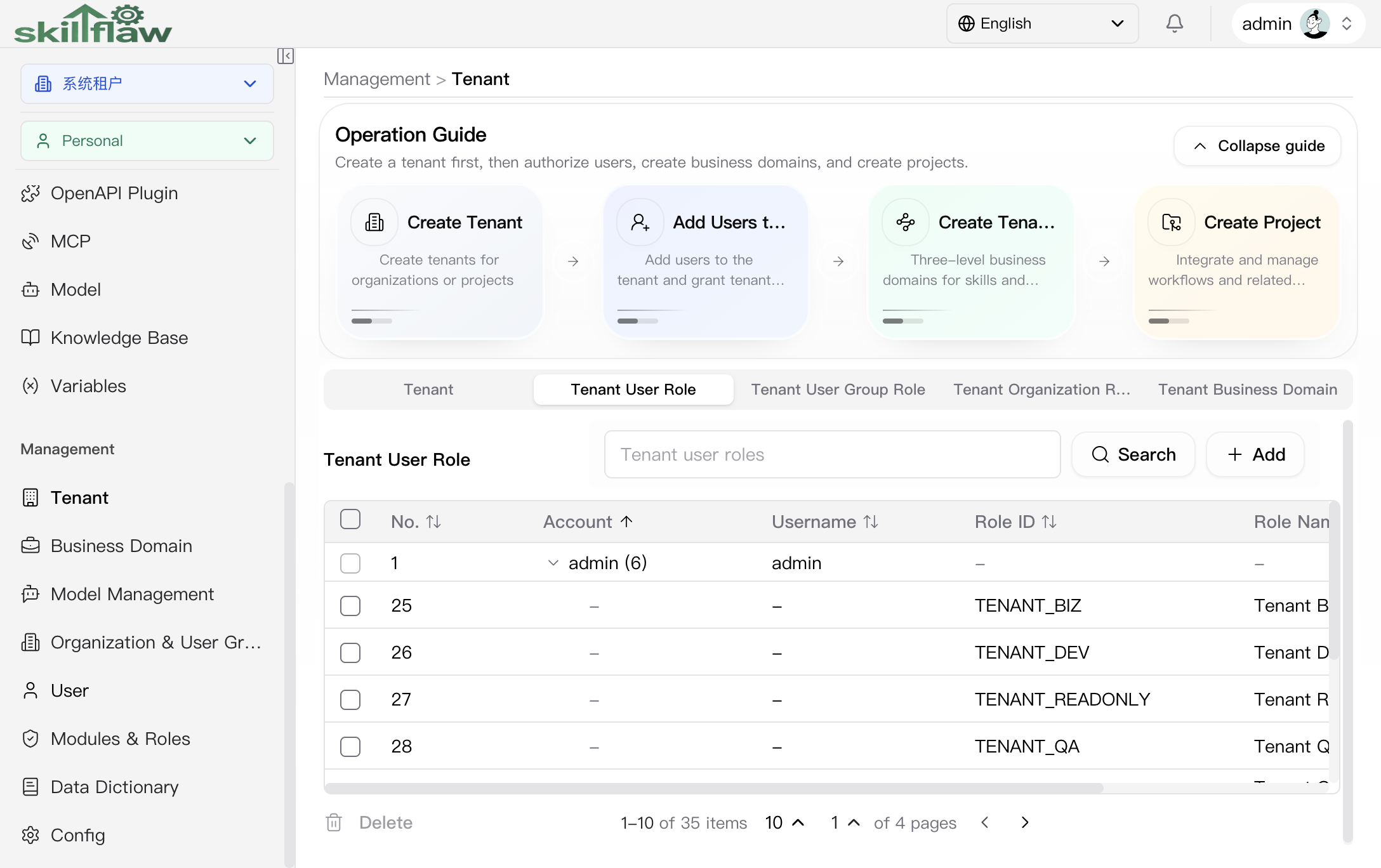
The screenshot above shows the Management > User home page. The top area highlights common user-governance entry points, including Create User, Add User to Tenant (Authorize), and Tenant User Authorization, so administrators can create an account first and then complete tenant membership and role assignment.
The list area currently supports multiple filter dimensions, including:
- user status: all, active, inactive
- user type: all, admin, regular user
- lock status: all, normal, locked
- SSO: all, SSO login, direct login
- login mode: all, website login, API key access
The table shows account, username, active state, admin marker, lock state, login mode, mobile number, and email address, and it provides add, search, and row-level action entries for centralized account maintenance.
Add User dialog
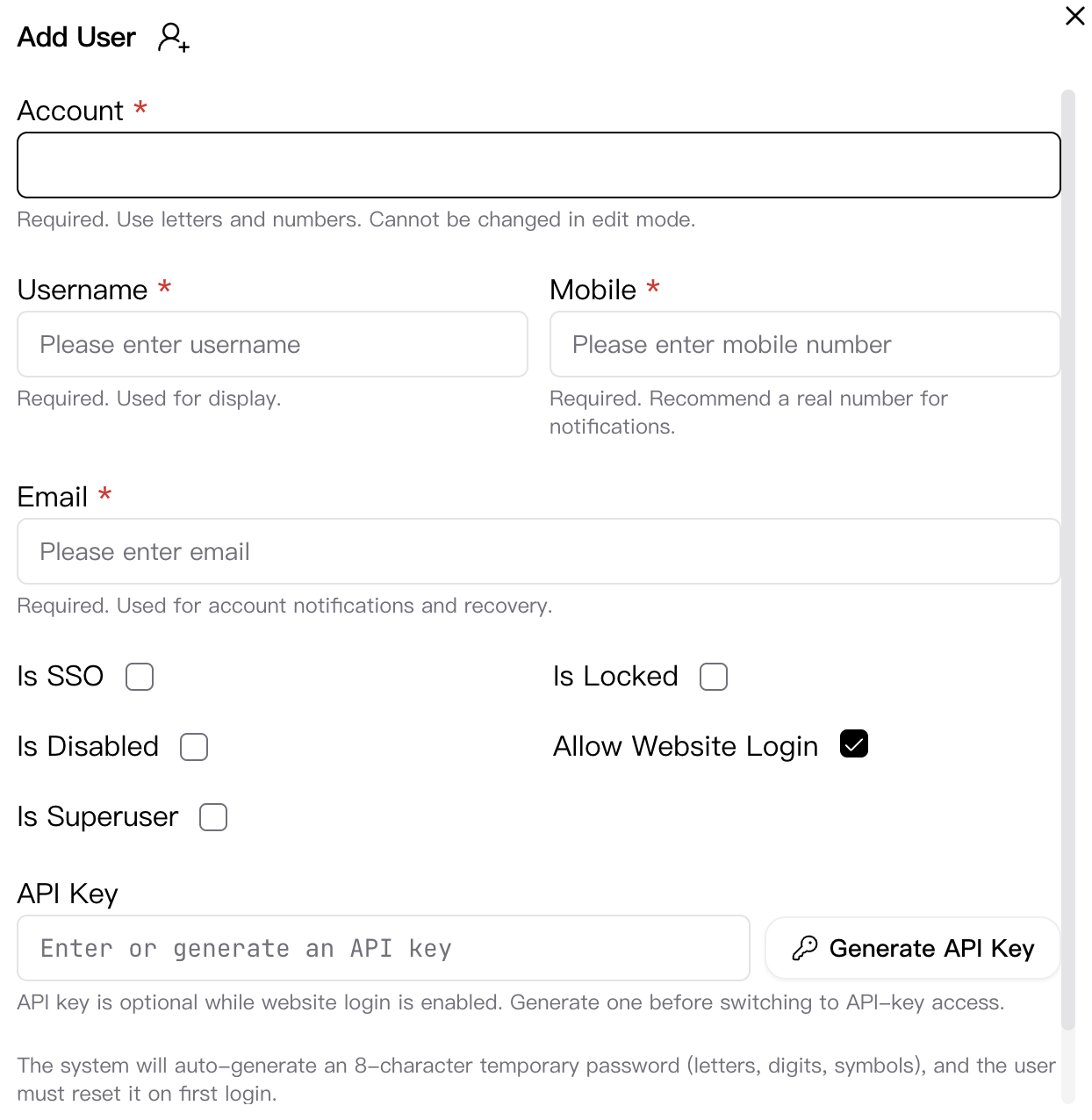
Click Add in the upper-right corner of the page to open the Add User dialog. This dialog is used to create a new account and configure login and access behavior.
The dialog currently includes these key fields:
- Account: required; use letters and numbers. It cannot be changed after creation.
- Username: required and used for page display.
- Mobile: required for notifications and contact.
- Email: required for notifications and account recovery.
- Is SSO / Is Locked / Is Disabled / Allow Website Login / Is Superuser: controls account state and access behavior.
- API Key: can be used for API-key access and can be generated from the dialog.
The footer provides Cancel and Save actions. According to the page guidance, the system generates a temporary password and requires the user to reset it on first login.
Edit User dialog
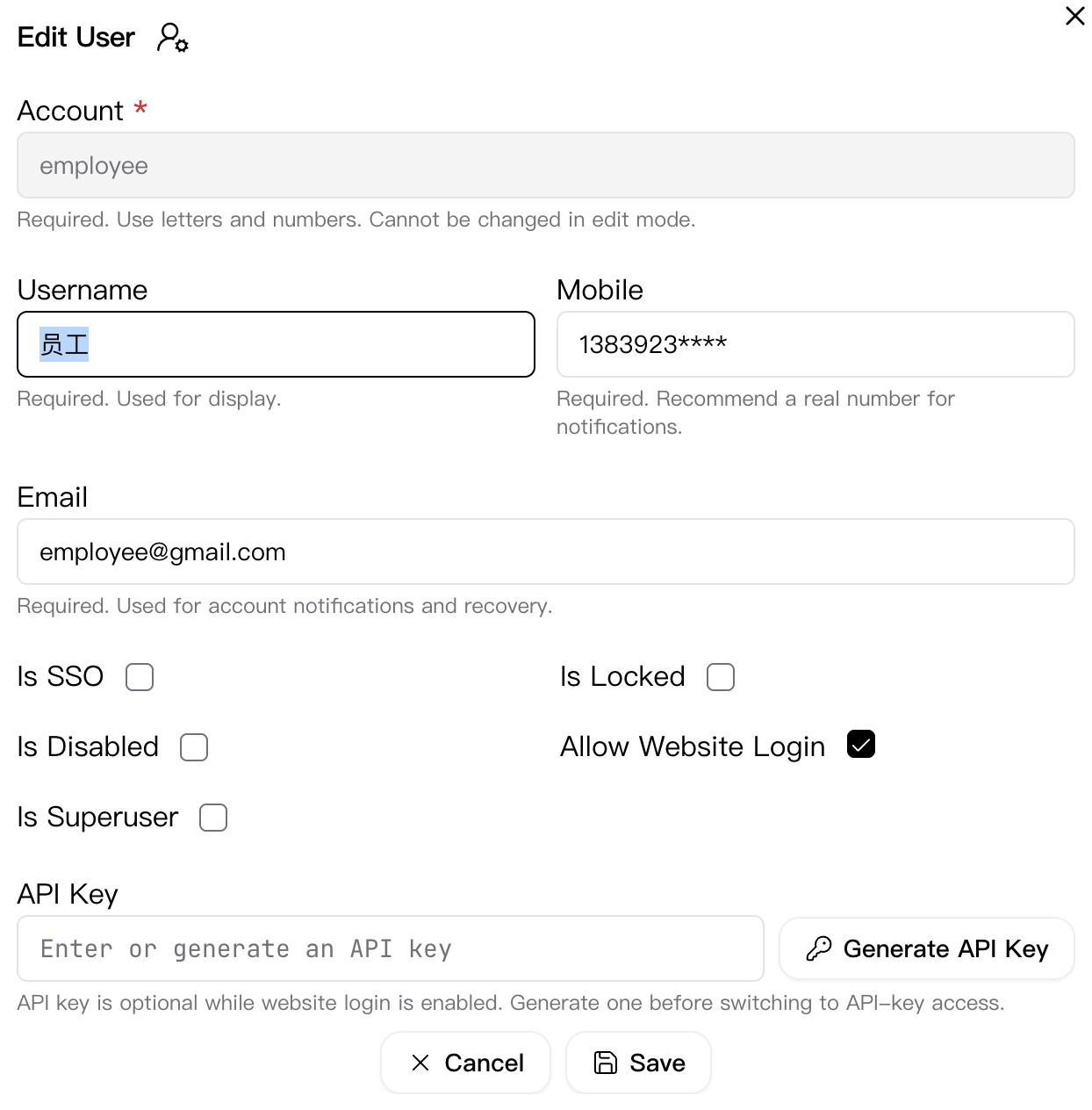
Click the edit action in the user list to open the Edit User dialog. This dialog is used to adjust display information and access state for an existing account.
The dialog currently includes these key fields:
- Account: shows the existing account identifier and cannot be changed in edit mode.
- Username: updates the display name.
- Mobile: maintains contact information.
- Email: maintains notification and recovery information.
- Is SSO / Is Locked / Is Disabled / Allow Website Login / Is Superuser: adjusts account state and access behavior.
- API Key: can be regenerated or used when switching access mode.
The footer provides Cancel and Save actions. This dialog is suitable for account-state changes, profile updates, and access-mode adjustments.
Recommendations
Before working in this module, confirm the current tenant and business context and then perform actions according to the page permissions.