MCP manual
This page summarizes the main user-facing Model Context Protocol (MCP) usage in SkillFlaw.
In the documented product structure, SkillFlaw can participate in MCP workflows in two major ways:
- as an MCP server
- as an MCP client inside flows
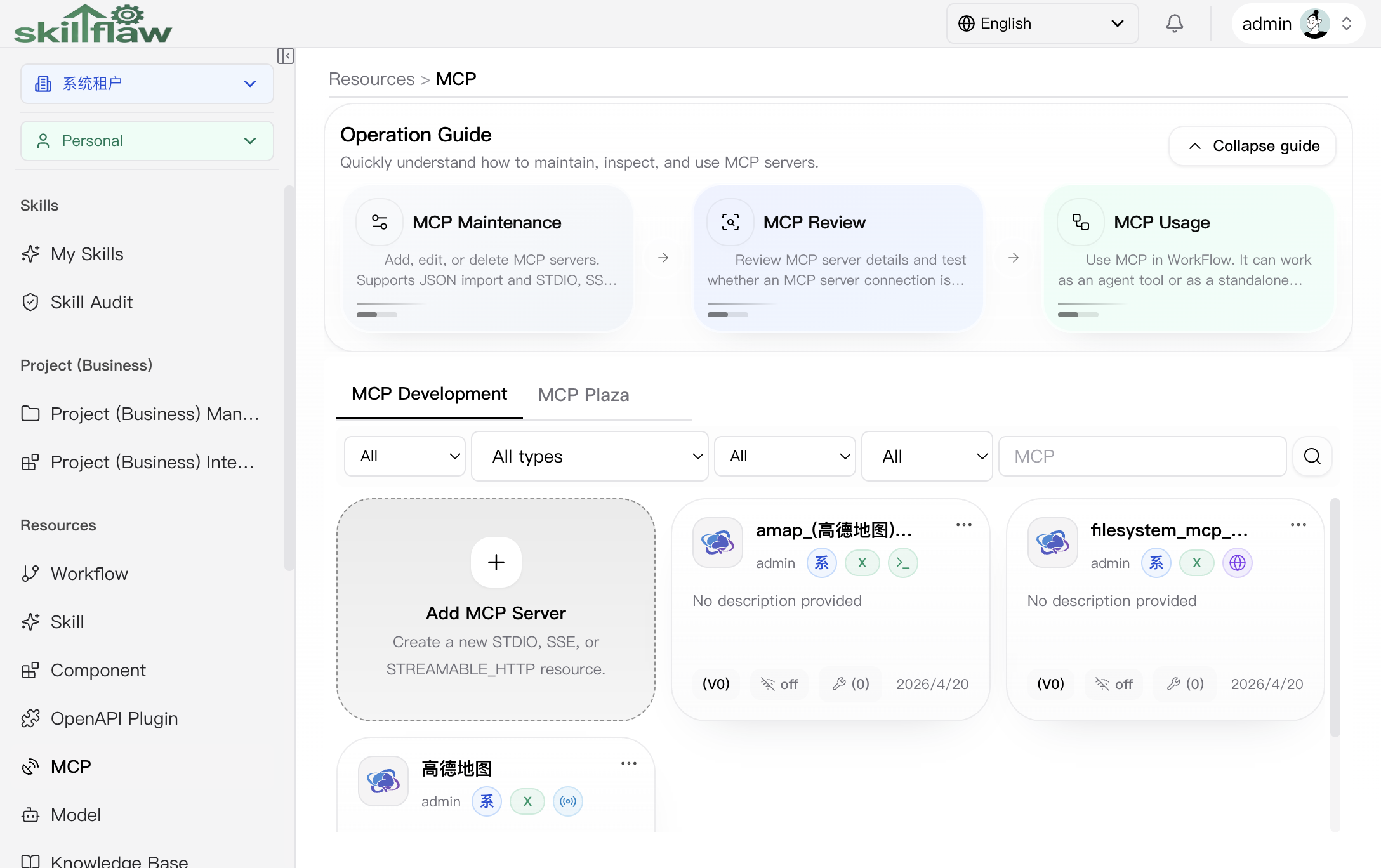
Real interface screenshot
The screenshot below shows the MCP page in the live product. It includes the operation guide, development and plaza tabs, filters, and the entry for creating an MCP server resource.
MCP server usage
A common product path is exposing flows as MCP tools so external MCP-compatible clients can call SkillFlaw workflows through a standard MCP transport.
Add MCP Server dialog
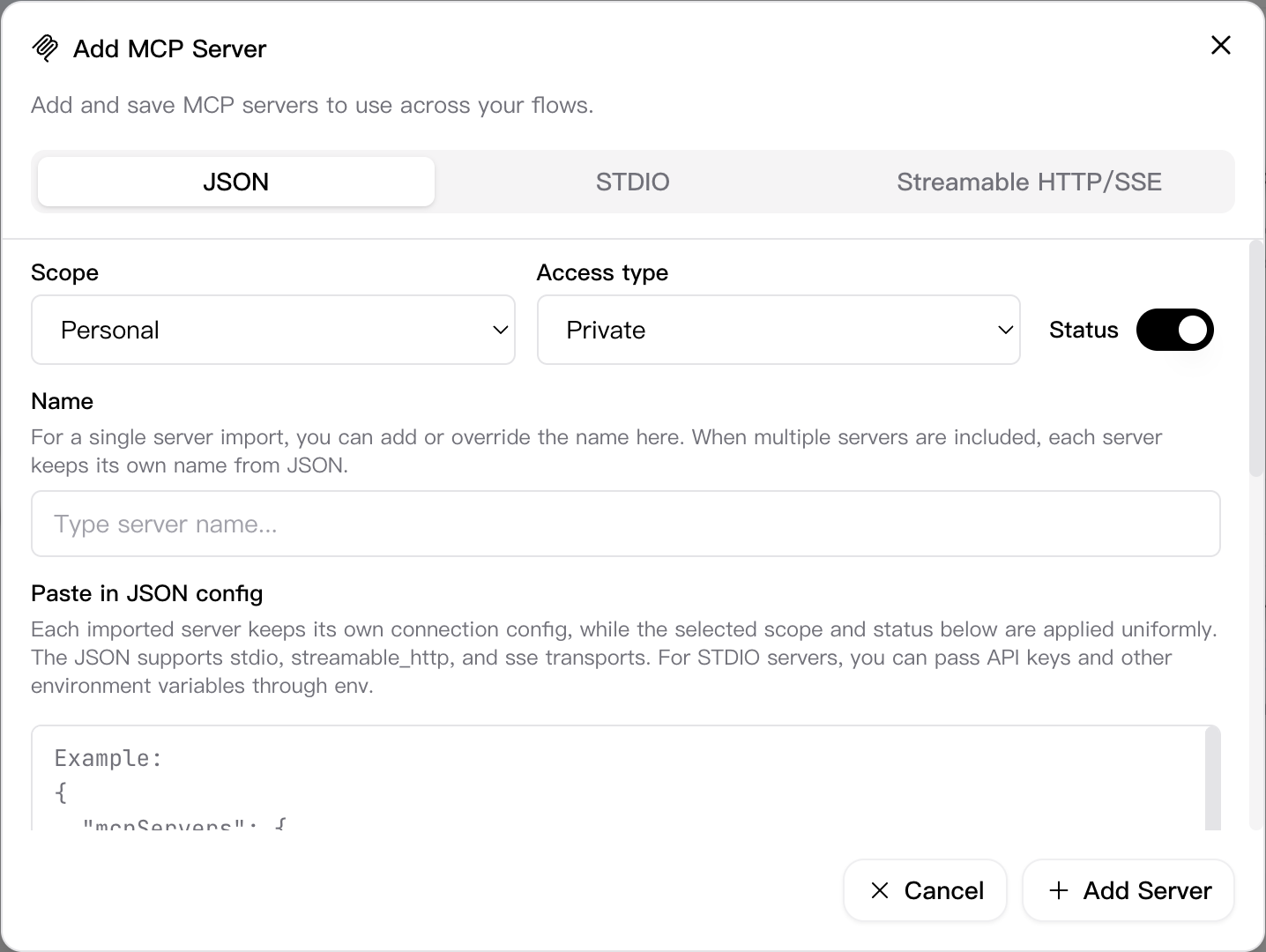
Click Add MCP Server on the MCP page to open the Add MCP Server dialog. This dialog provides three visible configuration tabs:
- JSON
- STDIO
- Streamable HTTP/SSE
The dialog also shows the key configuration areas that users need before saving a server:
- Scope
- Access type
- Status
- Name
- Logo
- Notes
For JSON import, the page guidance explains that imported servers keep their own connection configuration, while the selected scope and status are applied uniformly to the batch.
User-facing flow
From a user perspective, the process is:
- prepare a flow that can be exposed as a tool
- make sure the flow includes a Chat Output component
- use the MCP server endpoint exposed by SkillFlaw
- connect an MCP-compatible client
- test and debug the exposed tools
Tool naming and descriptions
When users expose workflows as MCP tools, tool names and descriptions become part of the client-facing contract. Clear naming helps external agents choose the right tool.
This means users should treat:
- flow name
- flow description
- exposed action meaning
as stable, user-visible interface design.
Testing and debugging
The recommended debug path is to use MCP Inspector or another MCP-compatible client. This allows users to:
- verify transport connectivity
- confirm which tools are registered
- test request and response behavior
- debug authentication-related issues
Authentication boundary
MCP endpoints reuse the same authentication boundary as the SkillFlaw API. If authentication is enabled, users must connect through an authenticated session or a SkillFlaw API key.